Home Screen
Immediately after logging in, you arrive at the AI-School home screen.
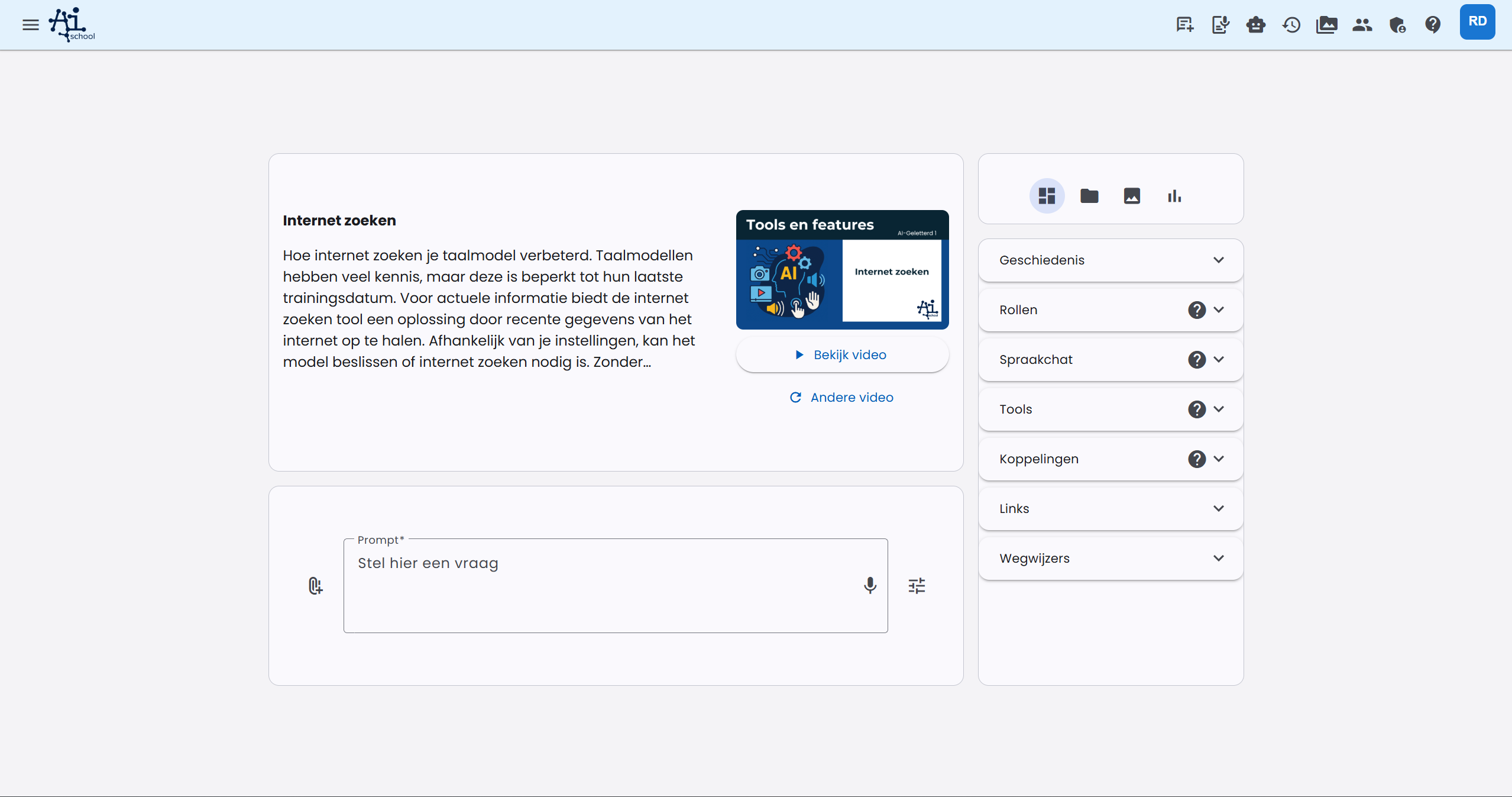
The dashboard is clearly organized into two columns:
Left column:
- At the top, a tile with the latest news (after first login) or a helpful tip
- Below that, the tile with the prompt (question) bar
Right column:
- A tile with tabs you can switch between:
- Sections (default): Courses, Recent chats, Assistants, Tasks, Projects, and Discover AI-School. One section is open at a time; the pushpin in the header keeps a section open
- Files: The files you can chat with
- Images: The images you have generated
- Statistics: The number of chat messages and images from the current month
Under Discover AI-School you will find the roadmaps and the latest updates relevant to you. A dot indicates that there is something new. From there, you can click through directly to the full post on the news page. At the bottom of the column is the latest explainer video.
Back to the Personal Dashboard
You can always return to the home screen (your personal dashboard) by:
- Clicking "New chat" in the menu bar, or
- Clicking the AI-School logo in the top left (this is especially useful if you use the app on your mobile phone)
Are you starting a completely new chat about a totally different topic? Start a new chat from the home screen. This prevents the AI from getting confused by information from earlier chats. It also keeps your chats better organized and easier to find in your history.
The personal dashboard is your starting point in AI-School, where you have all your options at hand. It is designed to support your personal experience and is fully customizable to your preferences and way of working.
The Prompt
At the bottom of the screen is a large input field. Here you can ask a question, also known as the 'Prompt'. Many articles, YouTube videos, and even books have been written about the topic of "Prompt Engineering". This refers to formulating the right question to get the best possible answer from the language model.
Below the input field, you can choose what you want to create:
- Chat: ask the language model a regular question.
- Text to image: create images directly from the dashboard.
- Text to audio: convert text into an audio file with a chosen voice.
When you choose Text to image or Text to audio, the input field gets more space. This allows you to enter longer prompts, scripts, or image descriptions in an organized way. In a chat window, you can also switch between these input modes once you have previously changed the input type in that chat.
Whether or not you get a good answer depends on the chosen language model and the prompt.
The chosen language model: AI-School offers language models from the central model catalog. The administrator determines per provider whether users mainly see cost-effective models, high-quality models, or a combination of both. Fast models are useful for everyday questions; stronger models are better for complex analysis, long documents, and careful reasoning.
The prompt: learning prompt engineering is a very important future-oriented skill. If you learn to guide the language model well, you can get much better results.
Continue with the chat
You can then continue chatting with the language model. The message history is retained. This allows you to keep "going" in the chat without having to repeat what you said in previous questions.
In a chat, you can also ask questions about using AI-School itself. For example, ask "Where do I configure tools?", "How do I upload a document?" or "How does the mobile app work?". The AI can then search for relevant information in the manual in the background and provide a practical answer.
While an answer is still being generated, you can already type your next question. With the send button (on a computer also with Enter) you place it in the queue above the input field. There you can edit, move, or delete messages. As soon as the answer is ready, the first message is sent automatically. If the answer has stopped or failed, the queue remains and you choose Send now yourself. The queue works for regular chat questions, not for images, audio, documents, or workflows.
Unique feature of AI-School
Switching language models
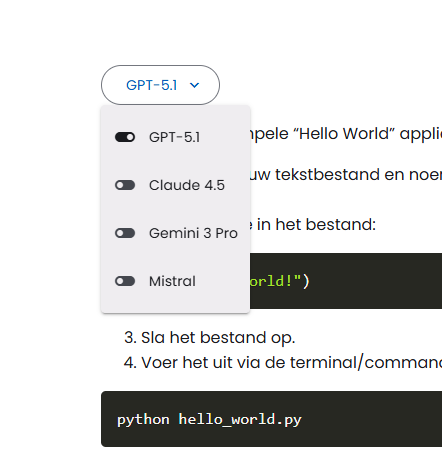
AI-School has a unique feature: the ability to switch between language models. We offer various language models, each with its own strengths and weaknesses. This allows you to discover which model you like best. You may also prefer different models for different use cases. You switch to another language model by clicking to the left of the answer on the language model selection button.
Copying or regenerating an answer
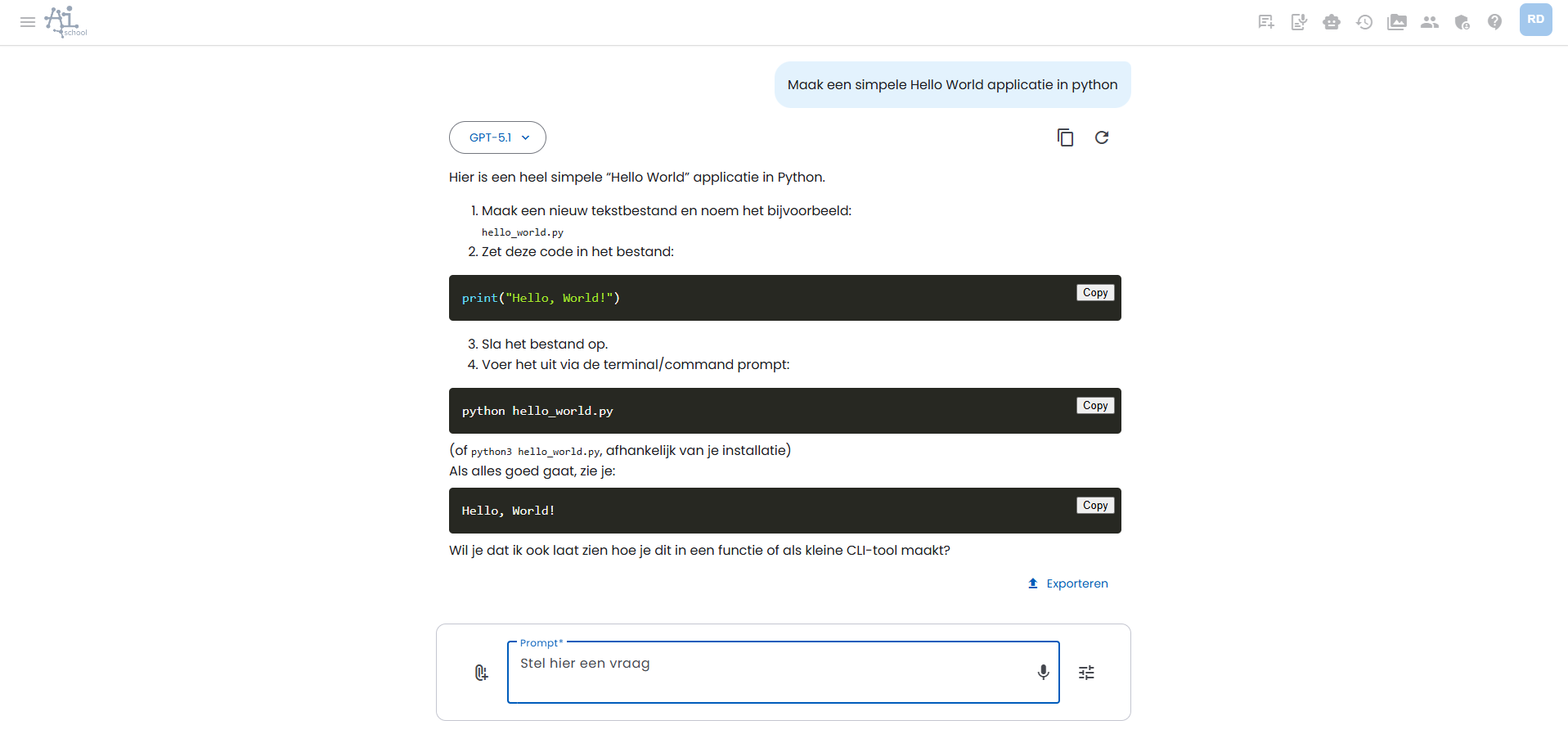
Next to the answer on the right are two buttons. With the left button, you can copy the answer. With the right button, you can have the answer generated again by the same language model. This can be useful if you want to give the model a second chance to produce a better result.
Generating images
You can create images in two ways:
- Via the regular chat, where the AI automatically uses the Create image tool when you ask it to.
- Directly from the dashboard with Text to image, where you have more control over model, format, style, variants, color preferences, and reference images.
With Text to image, you can choose from four formats via the settings button: Automatic, Square, Landscape, and Portrait. Automatic is the default; the AI then looks at your prompt and chat history to choose a suitable format. You can also choose a style, set the number of variants, and optionally add color preferences, for example brand colors.
You can add images as inspiration or as an image to edit. Inspiration images are used as visual references. When editing, the source image is modified; the aspect ratio is not chosen manually, so the model can preserve the original dimensions.
The Create image tool can have different modes:
- On: AI-School will try to generate an image based on your prompt.
- Off: No images will be generated, even if your prompt requests one.
- Auto: AI-School analyzes your prompt. If the prompt explicitly or implicitly asks for an image, the tool will try to create it.
You can manage the status of the "Create image" tool and other tools in your preferences or via the tool settings in the interface. When an image is generated, you can usually choose from different text-to-image models, although the selection may vary.
For creating images directly from the dashboard, see Text to image. For more information about the automatic tool in regular chats, see the relevant article about Tools.
Text to audio
With Text to audio, you can have a text or script spoken by an AI voice. You choose a model, language, and voice. In the extra settings, you can adjust the system prompt, for example for pronunciation, pace, tone, accent, or terms such as AI-School, ChatGPT, or Claude.
The available voices depend on the chosen provider and language. The voice list only shows voices that match the chosen language, or voices suitable for multiple languages. After generating, the audio file appears directly in the chat with an audio player and download button.
You can save your preferences for text to audio, so you do not have to choose model, language, voice, and pronunciation settings every time. Via Restore defaults you can remove saved settings again.
More explanation is available in Text to audio.
Chat with documents
You must first choose a suitable language model, for example a model from the current central model catalog with sufficient context space.
You can read more about chatting with documents in the relevant article.
Personal assistants
AI-School offers the ability to set up personal assistants. A personal assistant could be, for example, a 'History teacher' or 'Writing help for letters to parents'.
You give the assistant a name and then set which initial prompt and system prompt belong to the assistant.
The initial prompt is literally the first question you ask in the chat. You may also leave this field empty.
The system prompt works in the background to guide the behavior of the AI, and you can use it to provide useful background information (context). For example, to give instructions about style or to provide background information.
In addition to text-based assistants, you can also create voice chat assistants. These assistants are specially designed for spoken interactions and can be used for voice-to-voice communication.
You can read more about personal assistants in the relevant article.
Tools
AI-School includes various tools that the AI assistant can use to help you with specific tasks. These tools extend the AI's capabilities with external functions such as:
- Create images: Generate illustrations based on your descriptions
- Search the internet: Find current information online and chat with internet sources
- Search images: Find relevant images on the internet
- Create practice questions: Automatically create practice questions about topics
- Fetch weather: Get current weather information for specific locations
- Check AI content: Detect whether text was generated by AI
The AI decides automatically when tools are used, but you can also adjust these settings manually in your preferences.
You can read more about tools in the relevant article.