Layout and Menu
Navigation through the app takes place via buttons in the menu. After logging in, the layout is always the same: there is a taskbar at the top with buttons. On large screens, buttons are available at the top of the taskbar. These buttons largely disappear when the application is viewed on a phone. To the left of the logo is a hamburger icon. When you click on this, the menu buttons appear in the side menu.
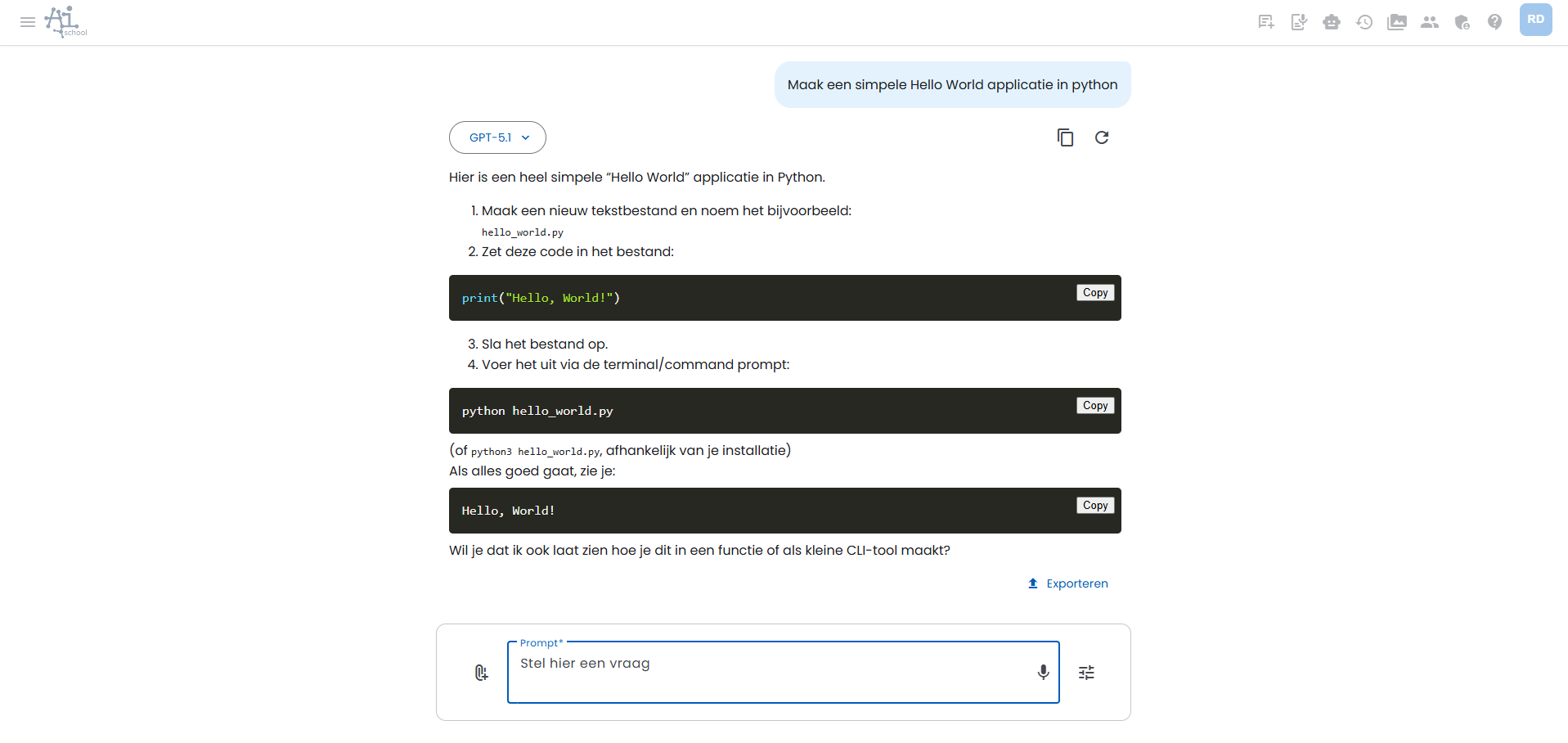
4 different menus are offered on the menu bar above and in the side menu on the left:
- Main menu
- Support menu
- Profile menu
- Settings menu
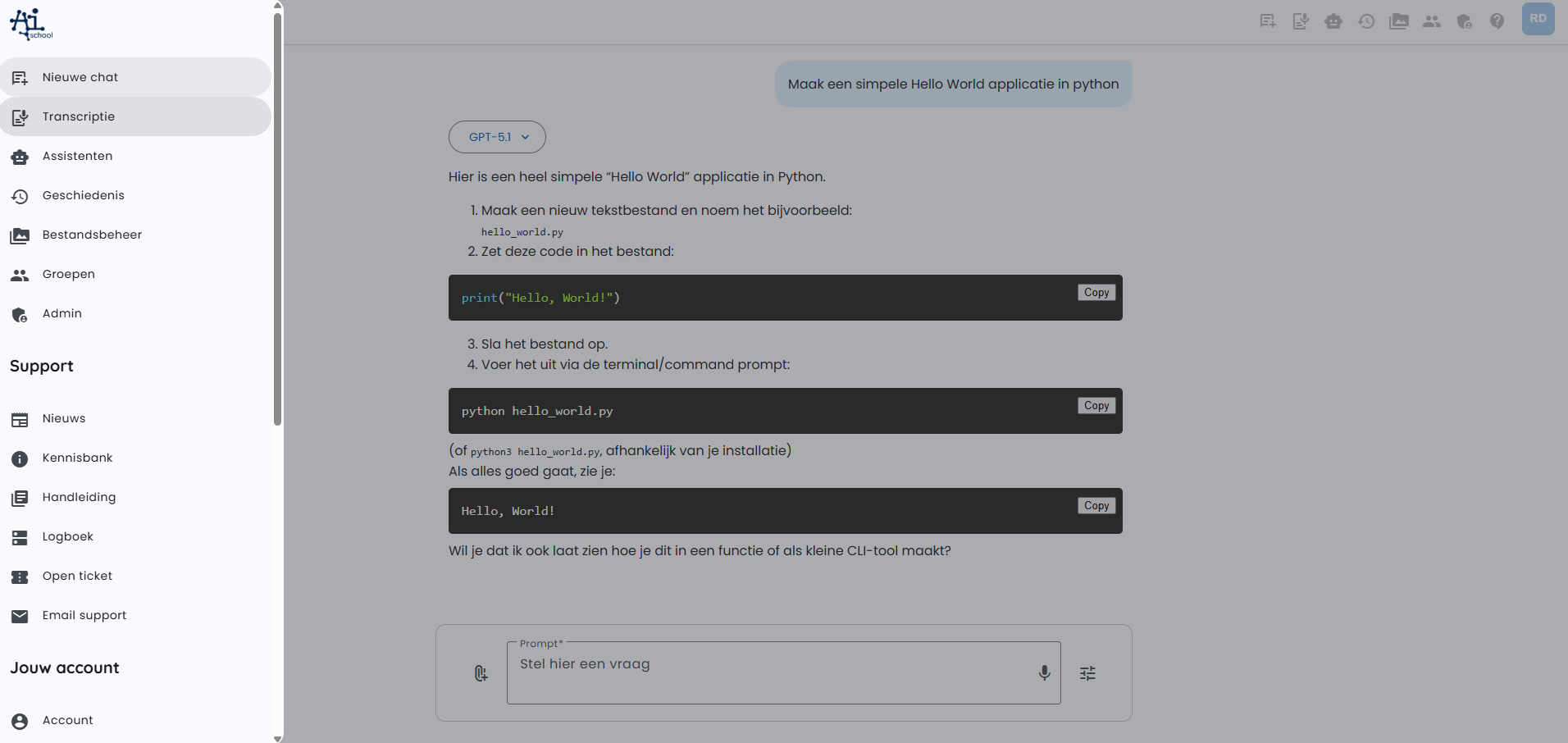
Main Menu
The following options are offered in the main menu:
- New chat: this returns you to the home screen with a blank chat. You can also click on the AI-School logo to return to the home screen.
- Assistants: view assistants. Employees can also create assistants
- History: view chat history. You can open previous chats here and continue where you left off.
- File management: view all uploaded documents and generated images
Depending on the logged-in account, this can be added:
- Lessons for students. Students can navigate to lessons through this menu
- Admin for school or board administrators
The main menu has separate buttons in the taskbar.
Support Menu
? → Support (/auth/support)
Have a question about the app? You can also ask the chat for help using information from the manual.
Known incidents
First check whether your incident is already known. You do not need to report a known incident again. If your problem is not listed, report it below.
Previous incidents: Resolved / Closed.
Ask your teacher for help or consult the chat. The chat can also help you using information from the manual. Students cannot submit support requests directly.
Profile Menu
The profile menu consists of:
- Profile: here you can find account details and employees can switch between different locations
- Log out: log out when you are finished working
Settings Menu
The settings menu consists only of the Preferences page. For employees, an additional page called "Select Groups" is added. Here, employees can select the groups they follow.
The profile menu and settings menu are both available in the taskbar on the right side under the initials of the logged-in user. This is a dropdown menu.