Chat with Documents
The next step in information processing
Instead of relying on public datasets and general knowledge, "Chat with Documents" generates context-specific answers and analyses based on your trusted internal sources. Upload your documents and use these documents as a basis for answering questions in the chat!
Documents that an administrator has published centrally do not need to be selected by you. For a relevant regular chat question, AI-School can automatically search the central knowledge documents available for your organization or school. You can also find these sources under Knowledge Base → School Board → Documents (or under your own school). Administrators can read in Managing Knowledge Base how to add and publish this knowledge.
Overcoming data limitations
When you ask questions to a language model, you depend on the dataset with which the model was trained. This is generally information taken from the internet. Non-public sources are probably not included in this dataset. By using your documents as a source for the chat, you can be sure that the model has the information you need to answer your questions.
Possibilities with your documents
You can ask questions about your documents such as listing the main points of a document or summarizing the document. You can also have specific analyses performed by the language model using your own dataset.
Disadvantages of document-based chatting
Uploading documents and processing them are extra steps you do not have to take if you can get a good answer without the context of specific information. It also takes longer to generate an answer because the necessary information must first be retrieved from the document before the request can be sent to the language model.
Checking source usage
The amount of source text used depends on the question, the document, and the chosen model. Check which sources have been fully, partially, or not read in the answer. Read the explanation about file management and source usage.
Select one or more documents
You can enable file mode by clicking the paperclip on the right side of the question bar. You can choose up to 10 files to chat with.
You can also paste an image, such as a screenshot or a copied picture, straight into the question bar with Ctrl+V (Cmd+V on a Mac); the image is uploaded right away and attached to your question, just like when you drag a file onto the question bar. To put a screenshot straight on the clipboard, press Cmd+Ctrl+Shift+4 on a Mac (without Ctrl, the screenshot is saved as a file) or Windows key+Shift+S on Windows. If you copy text that also contains an image, such as cells from Excel or text from Word, the text is pasted as usual. In an assistant, pasting images only works if that assistant allows adding images.
Files you upload are first processed. Once processing is complete, AI-School can use the content in the chat, in assistants, and in workflows. If processing fails, the file receives an error status and you must re-upload or reprocess the file.
At the moment you start chatting with documents, it is checked whether the language model is suitable for chatting with documents. If this is not the case, a suitable model from the current catalog is automatically selected.
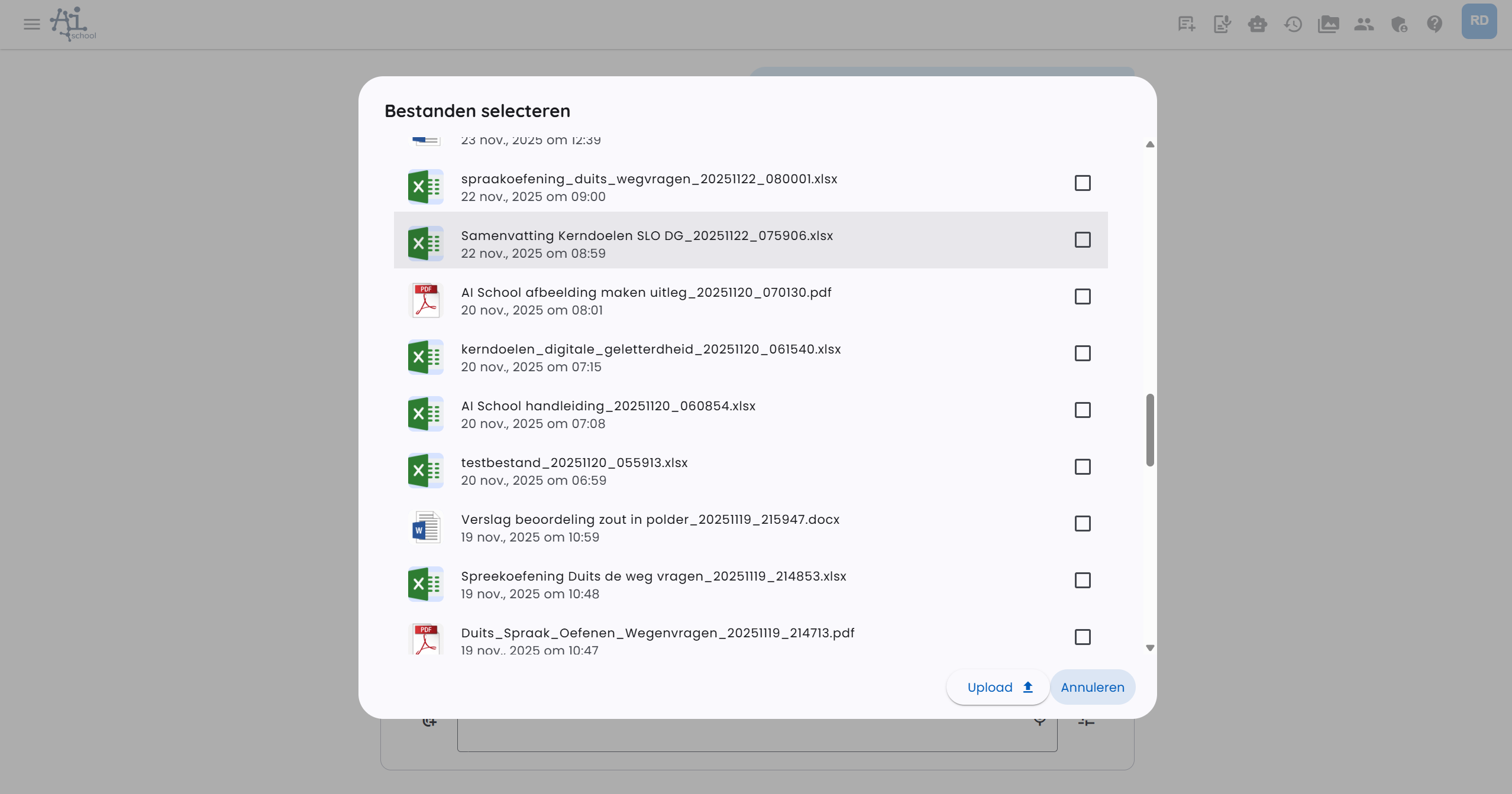
You chat with these documents as long as file mode is enabled.
Managing and reprocessing files
In File Management you see the files you have uploaded or that AI-School has created. Via the action menu, you can reprocess a supported document. This replaces the existing text extraction with a new processing.
PDF, Word, and PowerPoint files are automatically processed into searchable content. Text, document structure, and where possible relevant visual information are included. This is especially useful for:
- scanned PDFs
- completed forms
- handwritten answers
- circled or underlined choices
- tables, figures, and other visual information
Processing may take longer for large documents. AI-School splits documents into parts if necessary, so longer files can also be processed.
Choosing existing files
When a form or workflow requests a file, you can not only upload new files but also choose existing files via the media manager. This way, you do not have to upload a test, grading model, or other source document repeatedly.
Files added via such a form appear in the assistant files of the chat. They are not automatically selected for regular chat questions unless you enable them there yourself.
Text to document
With Text to Document you can create documents from the chat. This mode is intended for two types of documents:
- Free document — AI-School creates a formatted HTML document that you can continuously improve with follow-up prompts.
- Template — you choose a Word template with fixed input fields. AI-School then fills in the corresponding form based on the chat.
Read the full explanation in Creating Documents.
If no document templates are available, AI-School starts directly with a free document. If templates are set up, you first choose between Free document and one of the available templates.
Creating a free document
For a free document, the chat is on the left and the document preview on the right. Each prompt creates a new version of the document. You can go back to earlier versions via the version bar next to the preview.
In the settings, you can choose among other things:
- document or presentation
- portrait or landscape
- logo left, center, right, or no logo
- logo size
- document style
The formatting uses the branding of the school or environment. If no own branding is set, AI-School falls back to the standard house style.
Use annotations to precisely indicate which part of the document should be changed. For each annotation, you type directly what should change, for example that a title, block, or table should be different. You can then send the annotations without an extra prompt.
You can also add files to the document prompt, for example a recording of a meeting, a PDF, or an existing Word document. The AI then uses that content as context for the new document.
Free documents can be exported as PDF. The PDF uses the same document orientation as the set preview.
Filling in a template
For a template, a form appears on the right. The AI fills fields as soon as information from the chat is available. You can then check and adjust the fields yourself before generating the document.
Examples:
- You upload a recording of a meeting and ask for meeting minutes. The AI fills in participants, agenda items, and action points.
- You choose a letter template and describe the recipient, subject, and message. The AI fills the form and then creates the Word document.
- You choose a test template and provide subject, grade, level, and duration.
After generating, you can view and download the Word document. The formatting comes from the Word template, so the document remains editable.
Template fields can be filled automatically, but always check the form before generating the document. Especially dates, names, action points, and amounts often require a final human check.
Process per file
Besides chatting with documents, AI-School also offers the possibility to apply a prompt separately to each document and receive individual answers. This feature is called Process per file.
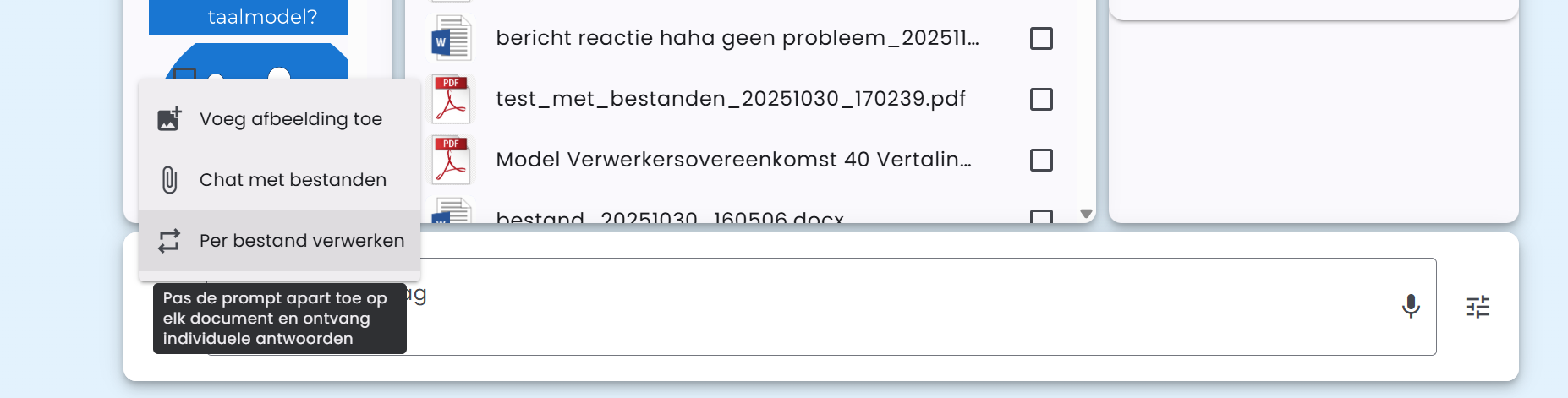
This feature can be used in combination with "Chat with files."
Possible scenario
A practical example of using "Process per file":
- You upload the test and the answer model and enable these under Chat with files
- You upload multiple submitted tests and enable these under Process per file
- You formulate a prompt, which is applied to all files individually
This way, you can automatically grade all submitted tests based on the answer model.
There is a maximum of 30 files for the "Process per file" function.
Supported file types
AI-School supports various file types for chatting with documents:
- PDF files ending in .pdf
- Word files ending in .docx
- CSV files ending in .csv
- JSON files ending in .json
- Text files ending in .txt
- Markdown files ending in .md
- Audio and video files with the extensions 'mp3', 'mp4', 'mpeg', 'mpga', 'm4a', 'wav', or 'webm'
Chatting with audio or video files
For chatting with audio or video files, AI-School first transcribes the file via the configured transcription provider, for example OpenAI or European AI. The specific models come from the central model catalog.
For conversations, the transcription can also include time blocks and speaker labels when the chosen transcription model supports that. Then a suitable text model can be used to correct punctuation, spelling, speaker labels, and technical terms.
After that, the same procedure follows as extraction from PDF or Word documents.
Audio and video models have provider- and model-dependent limits for file size and duration. Long files may therefore be processed differently than short files. If processing fails, check the file status and try to reprocess the file or submit it in smaller parts.