Guides
On the AI-School home screen, you will find the Guides panel on the right. A guide is a short tour: it points out buttons one by one and explains what you can do with them. New users see Getting started with AI-School highlighted until they have opened that guide.
Which guides you see depends on your role and your view. Steps for features that are not enabled in your environment, such as uploading files, transcription or voice chat, are skipped automatically.
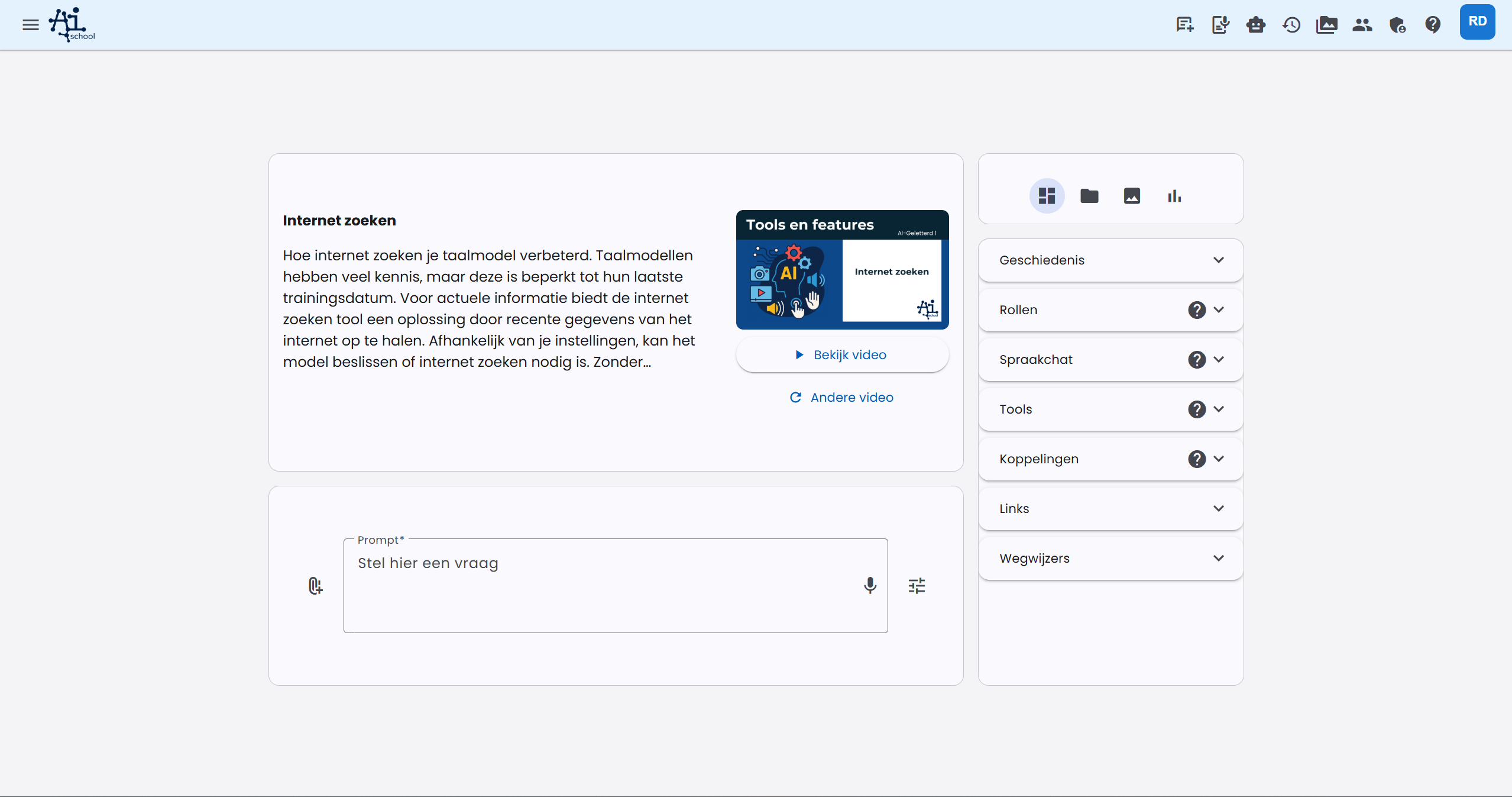
Staff: standard view
Getting started with AI-School
Welcome, starting a new chat and asking your first question.
Create with AI
The buttons below the input field: Chat, Image, Audio and Document. Then the plus button for files and photos, the chat settings, Track changes and finally the microphone to speak your question.
Files, images and assistants
The Files and Images tabs, File management, the Assistants, Voice assistants and Tools panels, and the Workflow assistants on the Assistants page. Finally, you see how to go back to the home page: with the cross or by clicking the logo.
History, preferences and transcription
Previous chats, statistics, your preferences (such as theme and language) and the Transcription page. The guide ends at the cross you use to close the transcription.
News, learning and help
News and videos on the welcome tile, the e-learning courses, updates, links from your school and the help button with the manual and the knowledge base. The e-learning Leren met AI contains basic information, made for students.
Staff: simple view
In the simple view there are fewer buttons, and therefore also fewer and shorter guides:
- Getting started with AI-School
- Asking questions: the plus button, File management and the microphone.
- Assistants and previous chats: assistants, voice chat, previous chats and preferences.
- News, learning, help and transcription: the welcome tile, courses, updates, links, help and transcription.
Students
Students get their own guides in simple language, in both the simple and the standard view:
- Getting started with AI-School
- Asking and creating: the plus button and the microphone. In the standard view also the Chat, Image, Audio and Document buttons.
- Lessons and learning: the lessons the teacher prepares, the Lessons button in the top bar and the e-learning Leren met AI. Under Courses, students only see Leren met AI.
- Your chats, assistants and help: previous chats, assistants, voice chat (if it is enabled for students), news and videos, preferences and help.
On a phone
On a narrow screen, some buttons are in the side menu (☰), such as File management, Transcription and help. The guide then points to the side menu and explains where you can find the button.
Viewing a guide again
The guides always stay in the Guides panel. You can view them as often as you like and stop at any time with the cross.