Audio Transcription & Meeting Minutes
AI-School can turn audio recordings into text and automatically create meeting minutes from them. Transcription uses the transcription provider from the central model catalog, such as OpenAI or European AI. When you start, you choose whether the recording is for personal use, a meeting, or a lesson/presentation.
Start screen
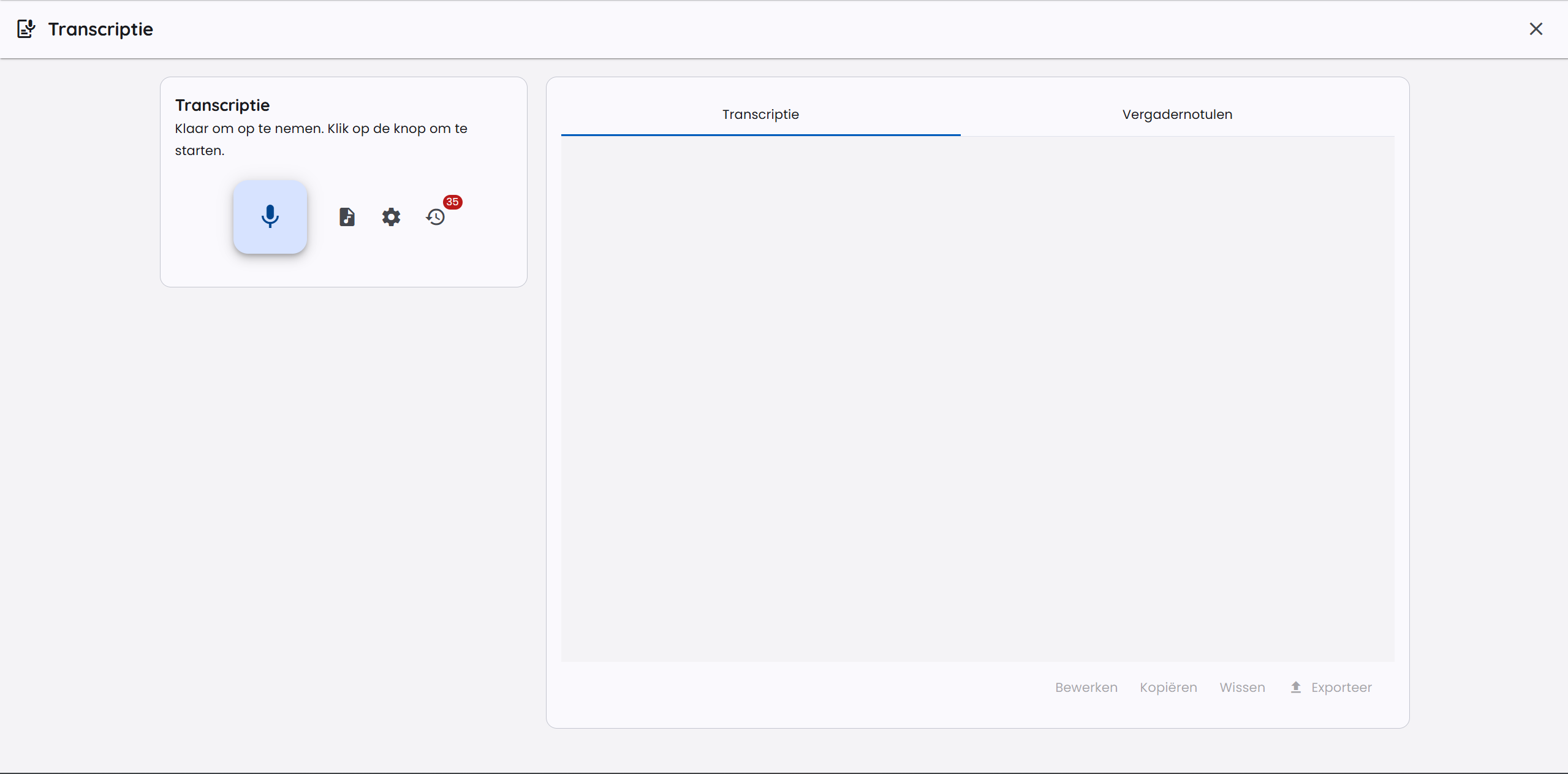
On the start screen of the transcription module you can start a new recording or upload an existing audio file.
Providing audio
There are two ways to provide audio for transcription.
Record directly in AI-School
During an active recording you can choose Pause. Paused time and audio are not included. Choose Resume to continue within the same recording and transcript; use Stop only when the meeting is finished.
Click the large Start recording button to start a recording. Before the recording starts, a dialog with settings appears.
Recording settings
When you start a recording, you can set the following:
- Recording type: choose the kind of recording:
- Private recording: for one person close to the microphone.
- Meeting: for several speakers in one room.
- Lecture or presentation: for one main speaker with possible interaction.
- Domain terms and keywords: add names, abbreviations, product names or specialist terms that are often recognized incorrectly.
- Language: AI-School uses the language setting of your account to steer the transcription to the right language.
You do not choose a transcription service in this dialog. The settings of your environment determine which service is used.
Behavior per recording type
The selected type determines how the recording is processed:
- Private recording with OpenAI uses realtime transcription in the browser. You see the text appear while you speak. Because this is meant for one person, no speaker recognition is applied and no interim audio files are stored.
- Meeting and Lecture or presentation use file-based processing. AI-School processes audio parts during the recording and also processes the complete final recording when you stop. This path is suitable for longer recordings, multiple speakers and recovery after interruptions.
- European AI/Mistral uses file-based processing. For a private recording, diarization is switched off, so the transcript is not unnecessarily split into speakers.
- Desktop app: every recording is first saved on your own computer and only transcribed after you stop. There is no live transcription, not even for a private recording.
Use an existing audio file
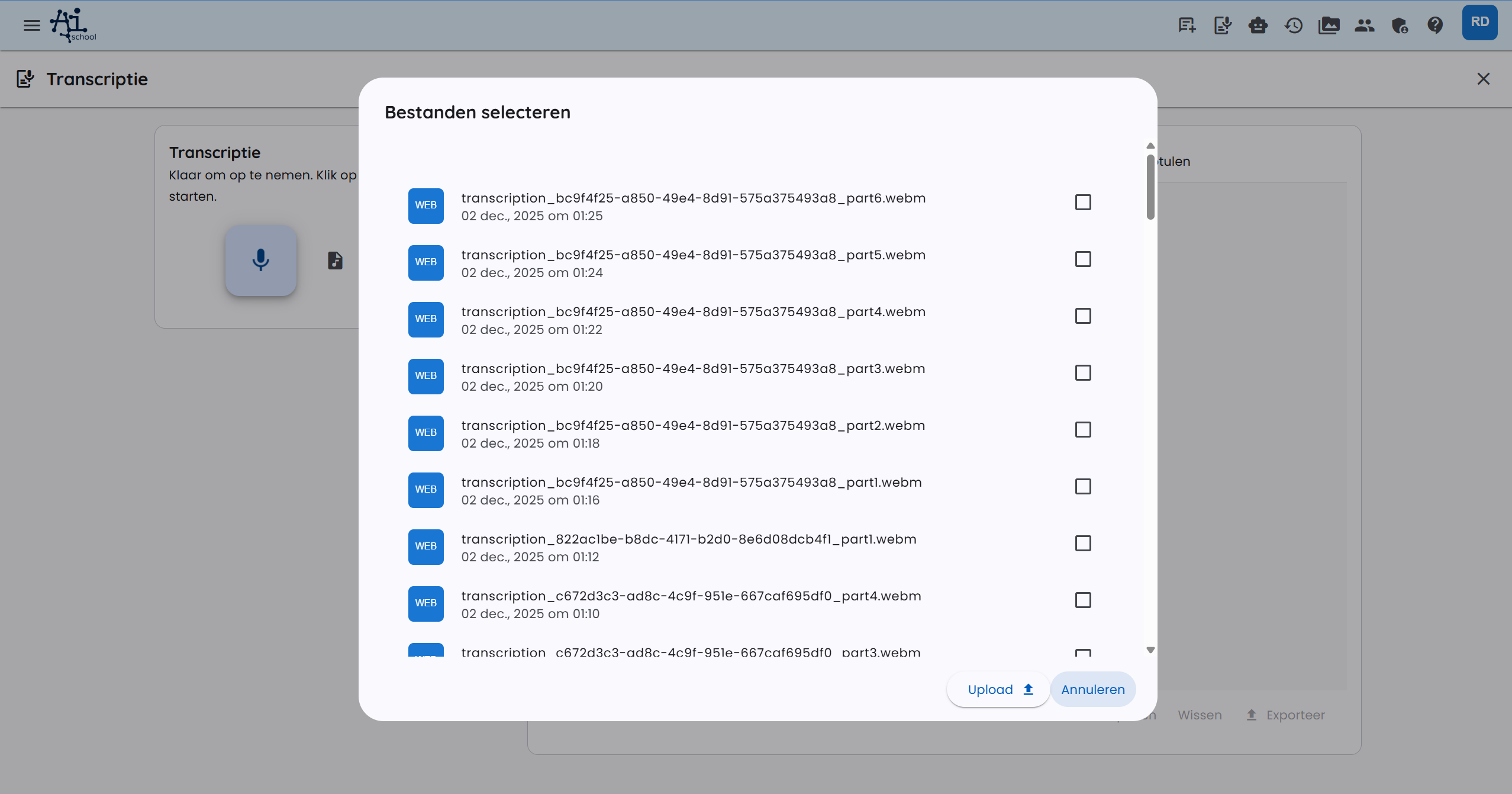
You can also upload an audio file you recorded earlier. Click Select audio file and choose a file. Supported formats include MP3, WAV, M4A and WebM. After the upload, the file is processed automatically with the same transcription approach as a recording of the same type.
Transcription and speakers
The transcript can contain time blocks and speaker labels. For conversations and meetings, the transcription model tries to tell speakers apart. For private recordings this is switched off, because the transcript is meant for one speaker. Sometimes the model uses labels such as Speaker A and Speaker B instead of real names. AI-School therefore post-processes the text to recognize explicit introductions, for example when someone says who they are.
Speaker recognition still depends on the audio quality, overlap between speakers and the selected model. If names or terms were not recognized correctly, you can have the transcript updated with AI.
Tips for better transcripts:
- Speak clearly and let speakers interrupt each other as little as possible.
- Use a good microphone and place it close enough to the speakers.
- Add important names, abbreviations and specialist terms in advance.
- Check the speaker labels and time blocks afterwards.
Updating the transcript with AI
After processing, you can easily have the transcript improved. Use Improve with AI and describe what needs to change, for example:
- rename Speaker A to Chair;
- correct a misspelled specialist term;
- change speaker names consistently;
- fix small transcription errors without rewriting the content.
AI editing is meant for targeted corrections. Always check the result when the transcript is used for reporting or decision-making.
Meeting minutes
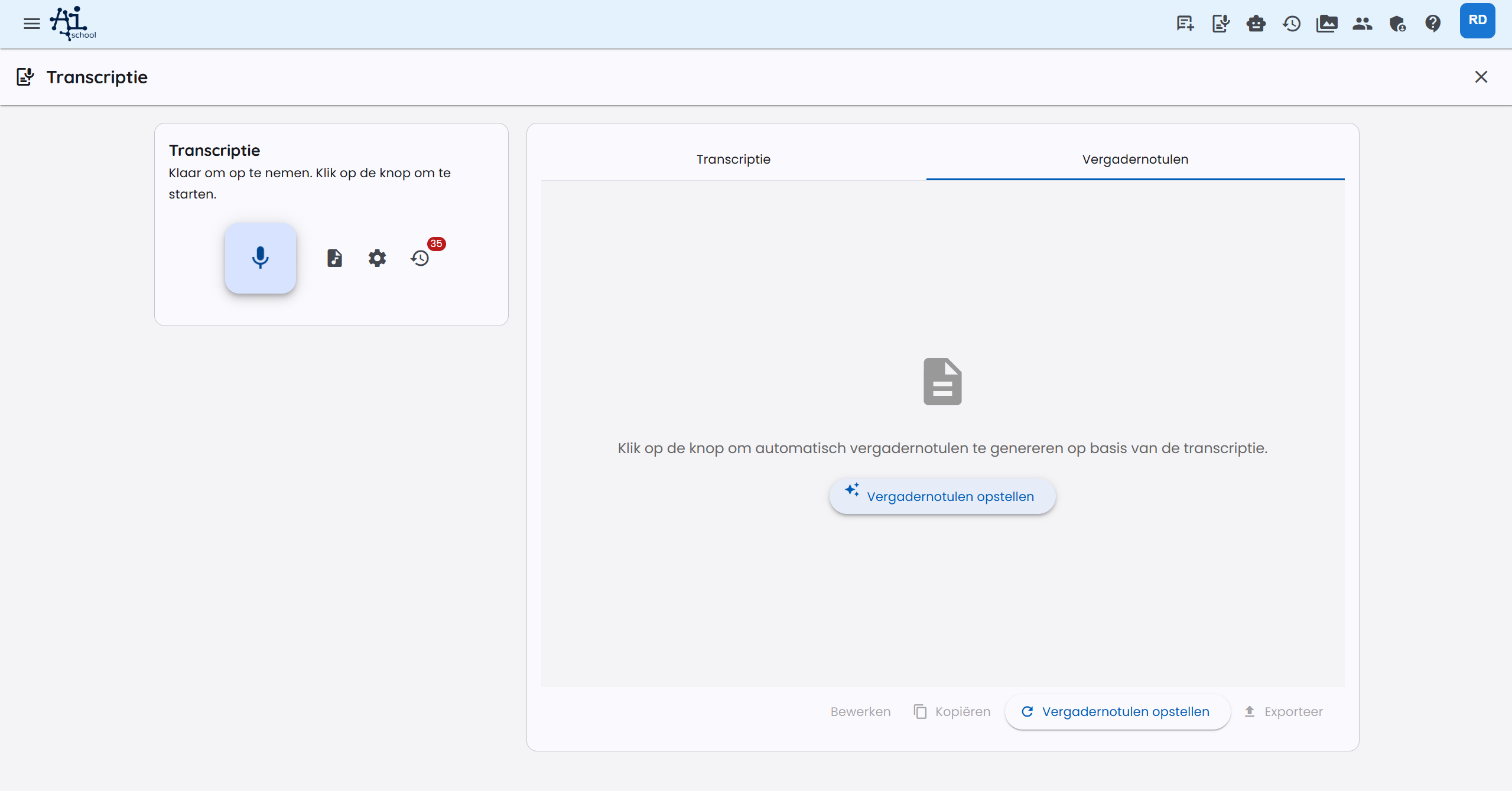
After the recording and transcription, you can have meeting minutes drafted automatically. Switch to the Meeting Minutes tab and click Generate meeting minutes.
The meeting minutes are drafted based on the transcript and the active prompt.
Advanced settings
Managing prompts
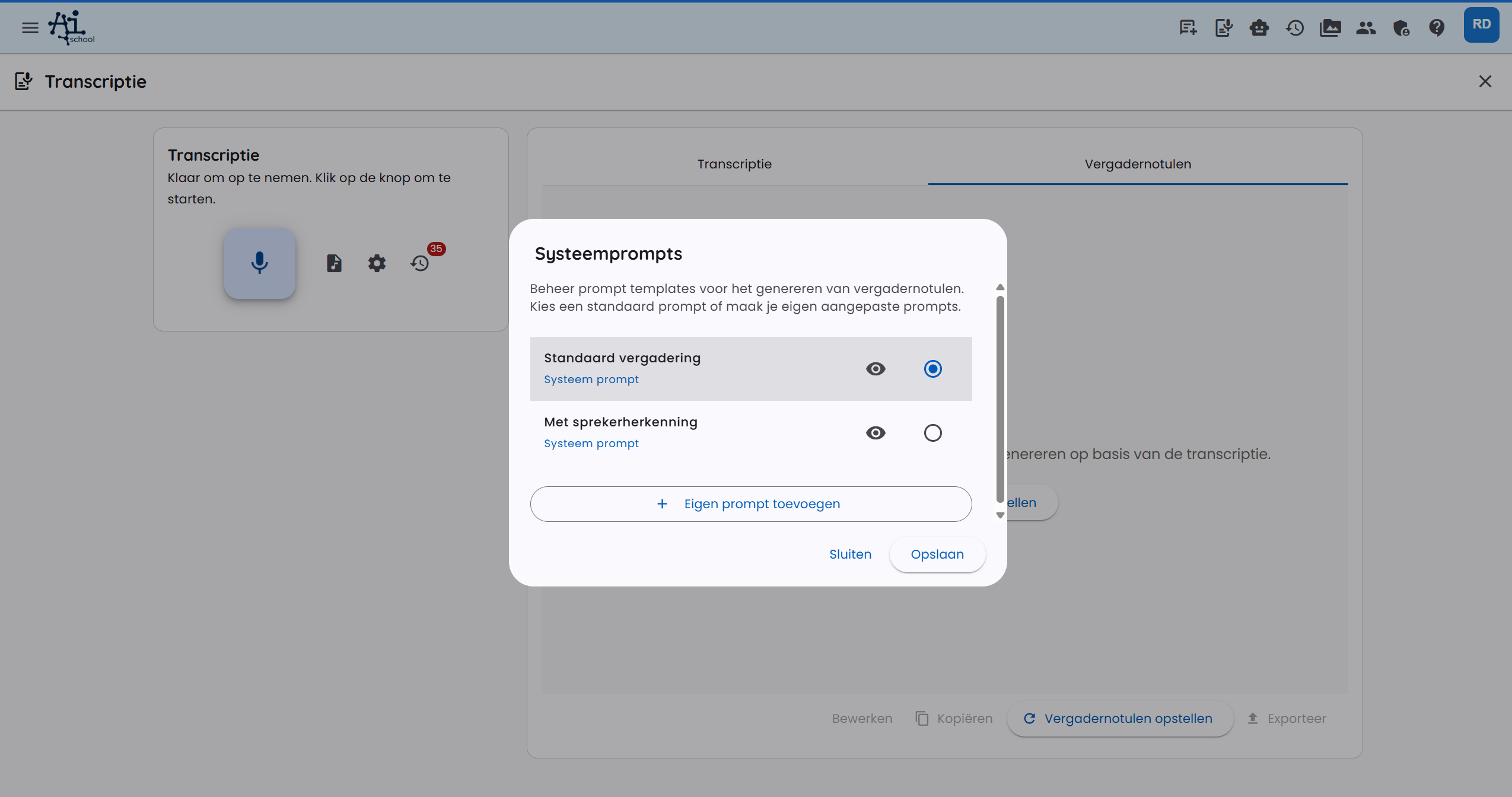
You can adjust and manage the prompts for meeting minutes. Click Configure prompt to open the prompt dialog.
AI-School provides default prompts for general meeting minutes and minutes with speaker recognition. You can also add your own prompts, for example for a fixed meeting structure, an action list or an education format.
All customized prompts are stored in your account and are immediately available for future transcriptions.
Managing history
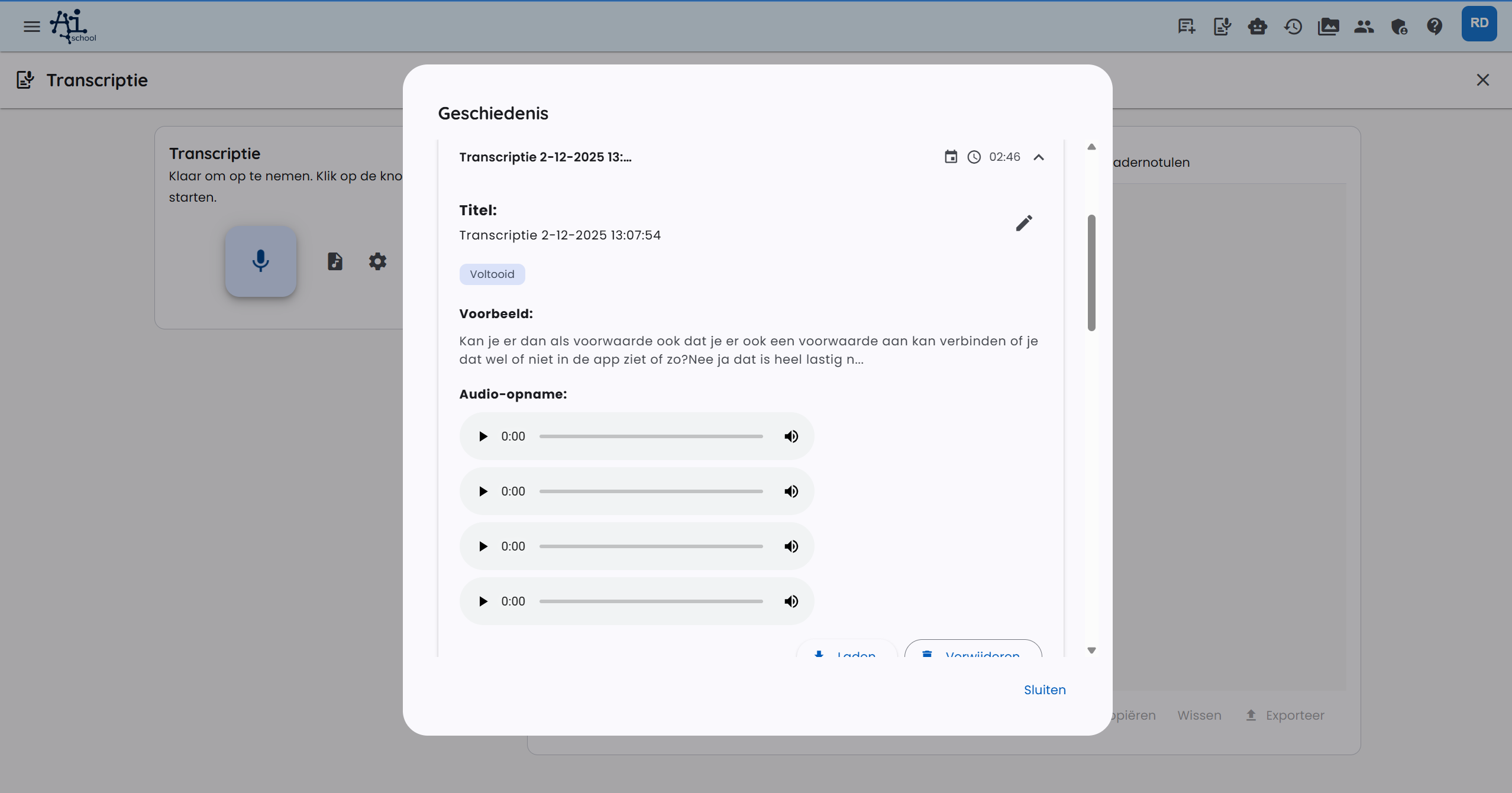
Via History you can view and manage earlier transcriptions.
In the history you can:
- search for transcriptions by title, date or content;
- edit titles;
- load transcriptions to view or edit them again;
- delete transcriptions;
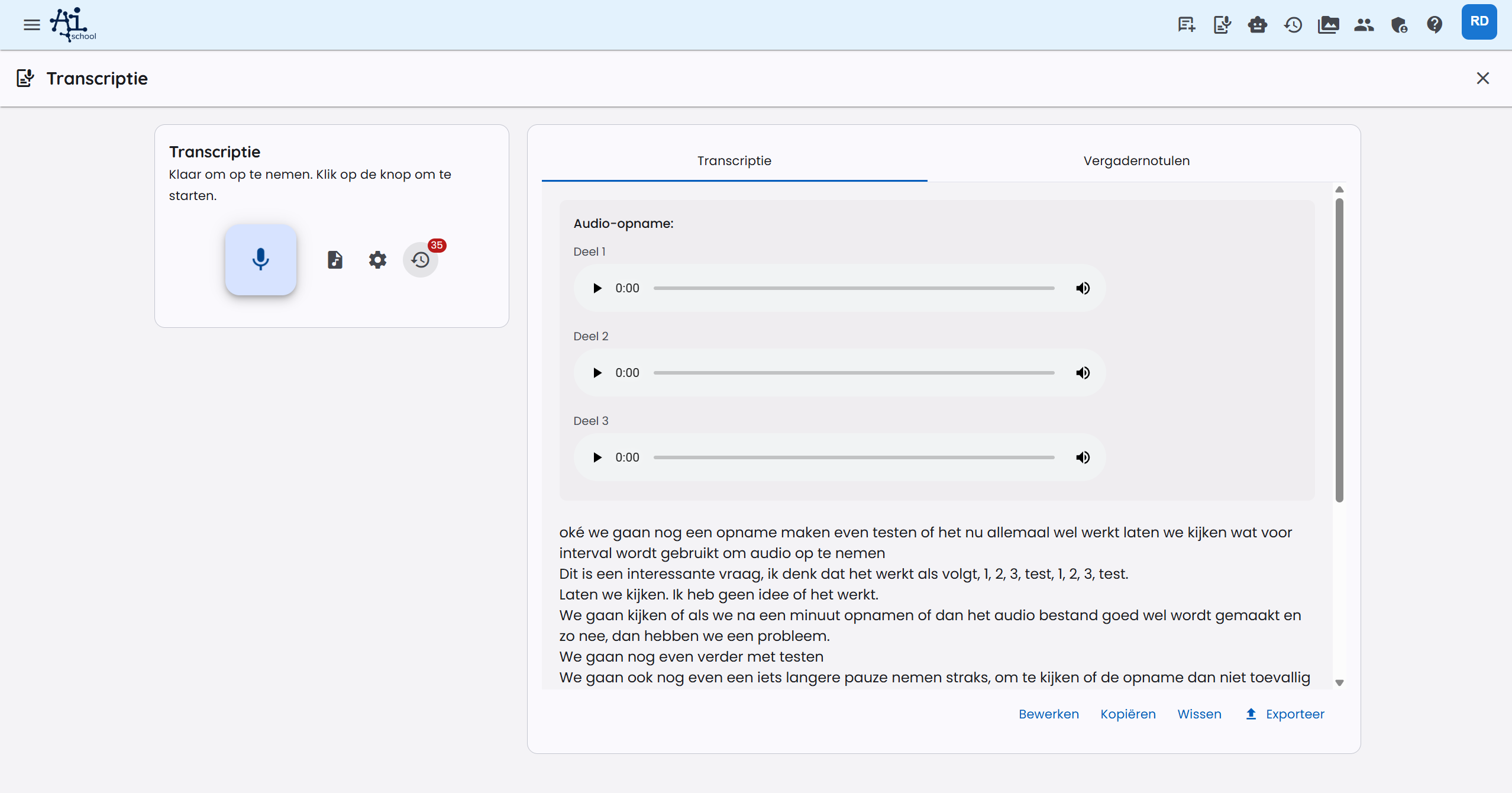
- play linked audio.
Using the transcript
You can use the transcript in several ways:
- Copy: copy the transcript with the copy button.
- Export to PDF: download the transcript as a PDF document.
- Use in chat: paste the transcript into a chat to ask questions or have analyses made.
- Export meeting minutes: export the meeting minutes to PDF or Word.
Audio parts and storage
In the browser
For private realtime transcriptions with OpenAI, AI-School does not store interim audio files. For meetings, lessons/presentations and European AI, AI-School uploads the recording as one audio part per minute. These parts are used for progress, reliability and recovery after failures. When you stop the recording, the complete final recording is processed as well. The final recording takes priority as the definitive basis for the transcript. After the complete transcription, the interim parts are cleaned up automatically.
If processing an audio part fails, the recording itself can continue. Check afterwards whether the final recording was processed correctly.
In the desktop app
In the desktop app, a recording is saved directly on your own computer while you record. You see Recording is being saved locally and how much space the recording takes up. Nothing is uploaded during recording and there is no live transcription.
After you stop, the recording is uploaded in one go and you see the progress. The recording is then transcribed. The app deletes the local copy only after the transcript has been saved.
Was the app closed or did it freeze during a recording, or did uploading or processing fail? Then the recording is listed on the transcription page under Recordings on this computer. Choose Process or Try again to have it transcribed after all, or Delete to remove it permanently from your computer.
When free disk space runs low, you get a warning. If the disk is almost full, the recording stops automatically and everything recorded so far is kept.
A recording in the desktop app can last up to about 9 hours; after that, the recording stops automatically and everything recorded is processed.
Playing and recovering recordings
When the complete final recording is available, one audio player appears. Otherwise, choose a recording part from the list. The mobile app offers locally saved recordings for uploading again or permanent deletion.
Awaiting upload. The local copy is deleted after a successful upload. Uninstalling the app deletes local recordings.
Standard processing: up to 1 GiB per audio file. Make sure there is enough free storage for the recording and processing.
On Android, the recording stays active when you reopen the screen. After a forced stop, you can recover the saved audio and resume the same recording. If a call blocks the microphone, the recording pauses; resume as soon as the microphone is available again. If a headset disconnects, the app tries the built-in microphone. Interruptions remain visible; internal audio parts are presented as one recording.
In the Android app, Record opens the native recording screen directly. After stopping, you choose With speaker recognition or Without speaker recognition in one dialog and optionally add specialist terms. Cancel keeps the recording locally for later. The recording notification shows the duration and offers pause, resume and stop, including on the lock screen if your notification settings allow it. After stopping from the notification, return to the app to process the recording. In the mobile browser, browser recording remains available.
Provider and recovery for long recordings
The configured AI provider and the type of recording determine the processing. International file transcription tries AssemblyAI EU; if there is an error, processing can fall back to Vertex and then OpenAI. European AI uses its own European processing path. The final transcript may therefore come from a different provider than the first attempt.
For long recordings, interim text parts may appear before the final recording is ready. Wait for the final processing and check the text and speaker assignment. A loading message means that processing is still in progress. Gemini Live is also a realtime option for voice chat; that is a different feature from transcribing an audio file afterwards.