Managing Assistants
In the management environment, school and board administrators see the school and board assistants, their own assistants, and the public assistants of colleagues. They can view, copy, and share these assistants. Board administrators can also make assistants available board-wide.
Assistant Overview
The assistant overview shows school and board assistants, your own assistants, and the assistants that colleagues have set to Public. Personal assistants of colleagues are not included. With the filter at the top you choose what you see:
- All
- Public from staff
- School and board
- Mine
Below the filter you see how many personal assistants there are in addition. These are not visible.
The Creator column shows You or the name of the creator, with Public, Personal, School, or Board below it. You also see the model used, the status, and when the assistant was created. The action menu only shows the actions you are actually allowed to perform on that assistant.
Read in Assistants how staff choose whether their assistant is public or personal.
Copying public assistants
A school administrator can copy public assistants of colleagues within their own school or schools. A board administrator can do this within the entire board. When copying, you choose whether the copy will be Public or Personal. The copy has no sharing settings. The creator's assistant does not change.
If you choose Edit on a colleague's assistant, AI-School asks Make a copy to edit? Only the creator can change the original. After confirming, the copy opens in the edit screen.
Sharing an Assistant
Administrators can share the assistants they manage, such as school and board assistants, with groups and colleagues. If you want to use a colleague's public assistant more widely, make a copy and share that.
You share with students through groups and classes or individually. On the Groups tab of the sharing window there is the Quick select block. With it you tick all matching groups at once: Lower school (years 1–3), Upper school (years 4–6), a year, or a level such as havo or vwo. You can then still tick or untick individual groups. For primary school groups, such as Groep 5, Lower school and Upper school are not shown.
Sharing does not change the status: an assistant in Draft remains a draft after sharing.
Board-wide Sharing
Only a board administrator can turn on board-wide sharing. The assistant then automatically becomes available to all employees of the board and appears in their assistant overview.
Board-wide sharing with all students is no longer possible. Existing shares with all students continue to work, but you can no longer set up new ones. Share with students through groups and classes or individually.
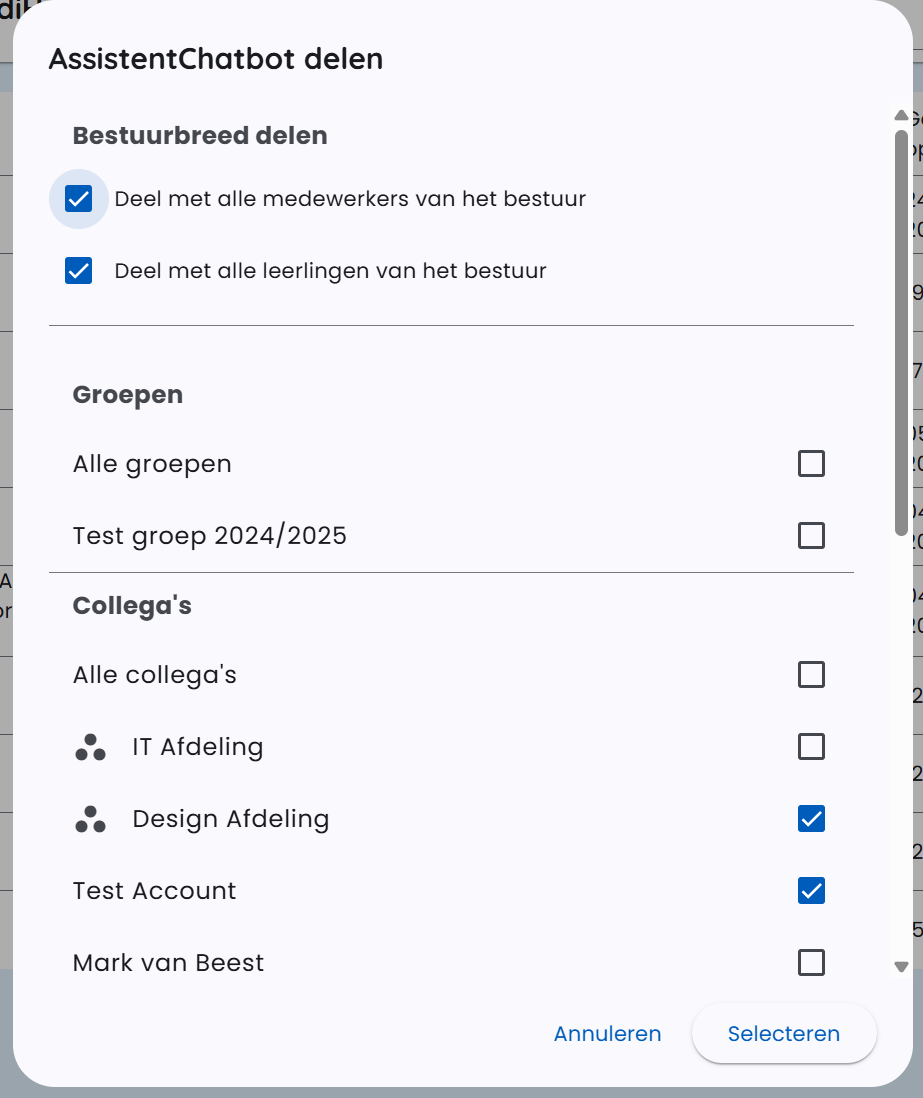
Board-wide sharing is especially useful for assistants that all employees can use, such as an assistant for lesson preparation or for Dutch language. This way, you don't have to manually select every group and employee.
Assistant Status
Assistants can have two statuses:
- Draft - The assistant is still in development and only visible to the creator
- Visible - The assistant is published and can be shared with others
For assistants you manage, such as your own assistants and school and board assistants, you can change the status. For a colleague's public assistant you can only view the status. The creator keeps control over the status.