Tools
Via the Tools tile in the AI settings area, you can configure per AI provider which tools and connectors are available. This determines which additional capabilities the AI can use in a conversation, such as searching the internet, creating images, performing calculations, planning routes, or saving information.
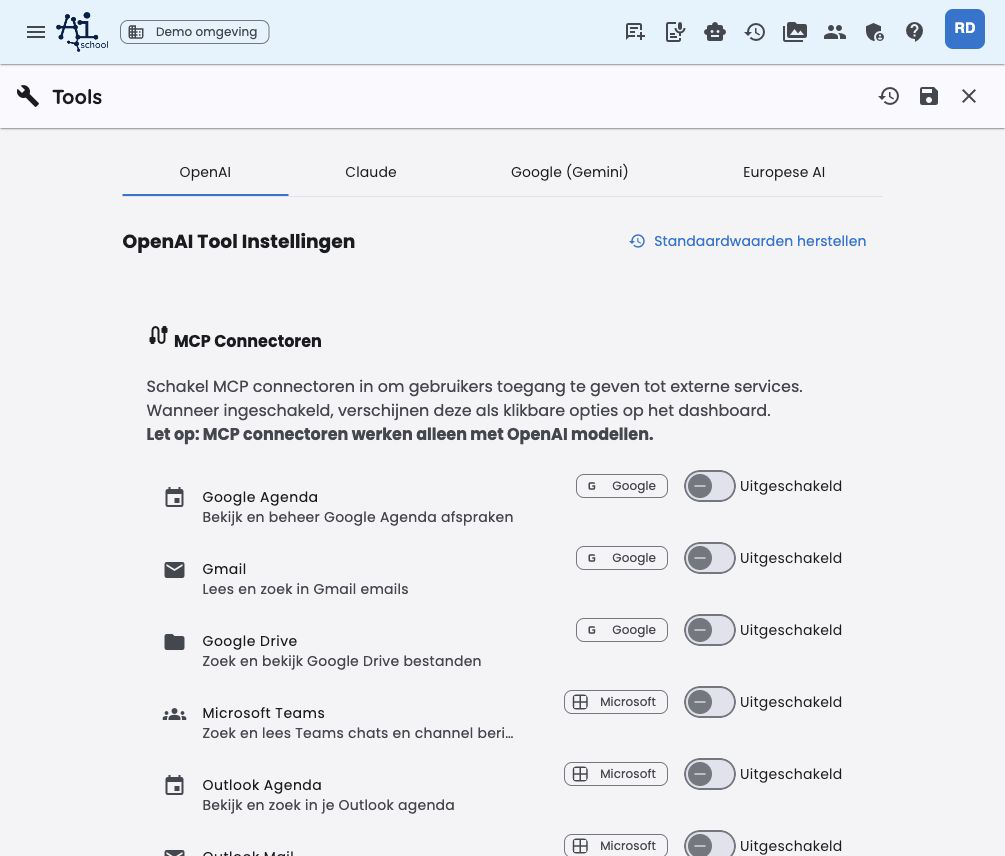
The page opens on MCP. The provider tabs from the model settings follow. If a provider is disabled there, the corresponding tool tab does not appear.
Microsoft organization app and write actions
Do you want to offer Microsoft 365 through your own organization app? Follow Setting up Microsoft 365. It lists the required Entra app, Graph permissions, organization consent, Identity Provider, and redirect URLs for AI-School, AI-Corporate, and AI-Public.
Under MCP → Suite shortcuts → Microsoft 365, you make the integrations available. If the suite is turned off, the underlying rows are hidden. In the Write actions column, you choose Drafts, Send, Write, or Post per integration; only approved actions can be performed. Click Save. Users only turn their available integrations on or off in Preferences.
Page structure
The page is divided into tabs per provider, plus a separate MCP tab:
| Tab | Meaning |
|---|---|
| MCP | Manage suites and MCP servers for the environment |
| OpenAI | Tool settings for OpenAI models |
| Claude | Tool settings for Claude models |
| Google (Gemini) | Tool settings for Gemini models |
| European AI | Tool settings for European models such as Mistral |
Per tab, depending on the provider, you manage:
- Native tools (built-in provider tools)
- Universal tools (AI-School tools)
On the MCP tab, you manage MCP servers at environment level. These are separate from the provider-specific tool settings.
The explanation for an individual tool is shown in the information button next to the tool name. This keeps the page compact while still allowing administrators to view additional context per tool.
Google and Microsoft connectors
Under MCP → Suite shortcuts, you can make Google Workspace and Microsoft 365 available or unavailable as a group. This manages the provider-independent AI-School connectors for the environment; an administrator does not sign in on behalf of all users here.
Users enable available connectors personally via Preferences → Tools and grant consent there once. Their tokens are stored server-side and remain usable in new chats and on other devices.
Examples of available MCP connectors:
- Google Calendar
- Gmail
- Google Drive
- Microsoft Teams
- Outlook Calendar
- Outlook Mail
The Google and Microsoft tools are executed by AI-School and are not linked to OpenAI. Users can use them with OpenAI, Claude, Gemini, and Mistral, as far as the selected model supports tool usage.
Google Calendar, Gmail, and Google Drive: own Google app
Google Calendar, Gmail, and Google Drive require read permissions that Google marks as sensitive or restricted. These are only available through an internal Google app from your own organization. Without your own app, they are greyed out and the Google Workspace suite in MCP → Suite shortcuts is not available. Signing in with Google and putting files on a user's own Google Drive do work via the central AI-School app.
An internal app (user type Internal) does not need to be verified by Google and does not require a security assessment. Only accounts within your Google Workspace can use it to sign in and connect. It works like the own Entra app for Microsoft:
- In Google Cloud, create an OAuth consent screen with user type Internal in a project from your own organization. Add the scopes
openid,email,profile,calendar.events.readonly,drive.file,drive.readonly, andgmail.readonly, and enable the Gmail API, Google Drive API, Google Calendar API, and Google Picker API. - Create an OAuth client of type Web application with these two authorized redirect URIs:
https://ai-school-pro.firebaseapp.com/__/auth/handler(sign in with Google)https://europe-west1-ai-school-pro.cloudfunctions.net/completeConnectorOAuth(connectors)
- Provide the client ID and client secret through the agreed secure channel. The platform administrator sets them on the Google provider of your environment's tenant in Google Cloud Identity Platform, enables the Google sign-in method under Admin → Environment → Tenant, and fills in the Google Workspace domain, for example
school.nl. - You can then enable Google Calendar, Gmail, and Google Drive. Users with an existing Google connector reconnect their Google account once.
Signing in with Google then also uses the own app and shows only accounts from the configured domain.
Tasks: Microsoft To Do and Google Tasks
The list of integrations also includes Microsoft To Do and Google Tasks. These are not AI tools: they sync users' My tasks in both directions with a list in that service. You enable the service with the switch in the row; users then connect it themselves in Knowledge base → Tasks or under Preferences → Integrations. Per user, only one service is active at a time.
- Microsoft To Do requires the delegated Graph permission
Tasks.ReadWritein your Entra app (see Setting up Microsoft 365) and a Microsoft account with an Exchange Online mailbox. Without a mailbox, the app reports that no task list can be created. When connecting, Microsoft only asks for the new permission; previously granted permissions for, for example, email or files are not requested again. - Google Tasks works only with the own Google app of your organization, as described above. Without that app, the row is greyed out with the message that an own Google app is required. In the consent screen, add the scope
https://www.googleapis.com/auth/tasksand enable the Google Tasks API. Users then reconnect Google once.
For users, the explanation is in Tasks.
MCP servers for the environment
On the MCP tab, you can first open a store with suitable presets via Add MCP server. The web app only shows servers that can work via a public Streamable HTTP connection. Via Add your own MCP server, you open the manual form.
Use the full HTTPS endpoint, including the MCP path such as /mcp. The backend checks DNS, private addresses, redirects, and the MCP handshake. After registration, chats use only a connectorId; endpoints and secrets are not included in the chat configuration.
An MCP server configured here appears on the dashboard under Tools for users who are allowed to see MCP connectors. They see these environment servers alongside their own personal MCP servers and can start a chat with them directly.
Users cannot edit or delete environment servers themselves. They can, however, enable or disable an available server personally. Administration is handled centrally via Admin environment → AI settings → Tools → MCP.
As an administrator, you can edit, enable or disable, and delete a configured server in this list. Users who have enabled the server keep it enabled. If you change the endpoint or authentication method, re-enter the secret and users must sign in again via OAuth. A disabled server is no longer available to users.
Environment servers are only visible to users who have access to MCP connectors. This access is determined by the environment limits and any individual settings for staff members or students.
Native tools
Native tools are built-in tools from the provider itself. They are not executed by AI-School, but offered by the provider with the model.
| Tool | Provider | Description |
|---|---|---|
| OpenAI Web Search | OpenAI | Searches for current information via OpenAI's built-in web search |
| OpenAI Code Interpreter | OpenAI | Runs Python code for data analysis, calculations, and visualizations |
| Claude Web Search | Claude | Searches for current information via Claude's built-in search |
| Claude Web Fetch | Claude | Retrieves content from web pages and PDF documents |
| Claude Code Execution | Claude | Runs Bash and Python code in a secure sandbox |
| Gemini Google Search | Searches for current information via Gemini's built-in Google Search | |
| Gemini Code Execution | Runs code for calculations and data analysis | |
| Gemini URL Context | Retrieves content from URLs for additional context | |
| Gemini Google Maps | Uses Google Maps for location information, routes, and places |
Gemini 3 and newer models can combine suitable Google native tools with universal tools and AI-School Google or Microsoft connectors. For older Gemini models, universal tools are disabled in a context with active native tools to prevent incompatible tool combinations.
Code execution tools, such as OpenAI Code Interpreter, Claude Code Execution, and Gemini Code Execution, are off by default. Enable them consciously when code execution, calculations, data analysis, or file editing is needed.
Universal tools
Universal tools are available for the providers where they technically fit and are offered by AI-School itself. Per provider, you choose what happens for each tool.
| Tool | Description |
|---|---|
| Create image | Generates images based on a text description |
| Create practice questions | Automatically creates quiz or practice questions about a text or topic |
| Internet search | Searches for current information on the internet |
| Search images | Searches for images on the internet based on a search term |
| Get weather | Retrieves the current weather forecast for a location |
| Check AI content | Analyzes whether a text may have been generated by AI |
| Search Wikipedia | Searches Wikipedia for encyclopedic information |
| Google Routes | Plans routes and calculates travel times |
| Google Places | Searches for information about locations and businesses |
| Wolfram Alpha | Performs complex calculations and scientific analyses |
| Wikiwijs lessons | Searches Wikiwijs for educational learning materials |
| SLO learning objectives | Searches the Dutch curriculum of SLO: core objectives, final attainment targets, reference levels, CEFR, and learning objectives maps |
| Save information | Saves important information as an editable note with the chat |
Some internal tools, such as chat_history_search, do not appear in this overview. They are automatically available to the assistant and follow the same environment, user permissions, and retention period. Administrators cannot manage them separately via the tool settings.
Setting per tool
For each tool, you choose from four values:
| Setting | Meaning |
|---|---|
| Automatic | The AI decides for itself whether the tool is useful for the question |
| On | The tool is always enabled in the relevant context |
| Off | The tool is disabled and cannot be used |
| Not visible | The tool disappears entirely from the user interface and from personal preferences |
The Automatic setting is the recommended choice in most cases. Choose On only when a tool is almost always needed in that context.
In their preferences, users can only set personal exceptions for visible tools. They cannot override the environment setting for tools that are set to Not visible.
Reset and save
Via Restore default values, you reset the tool settings of a provider to the default settings of AI-School. Changes are saved with the Save button in the app toolbar.
See also
- System prompts – guide AI behavior via system instructions
- Models – configure available providers and models
- Tools and connectors (user guide) – explanation of the tools from a user perspective