Managing Domains
Whitelisting Domains
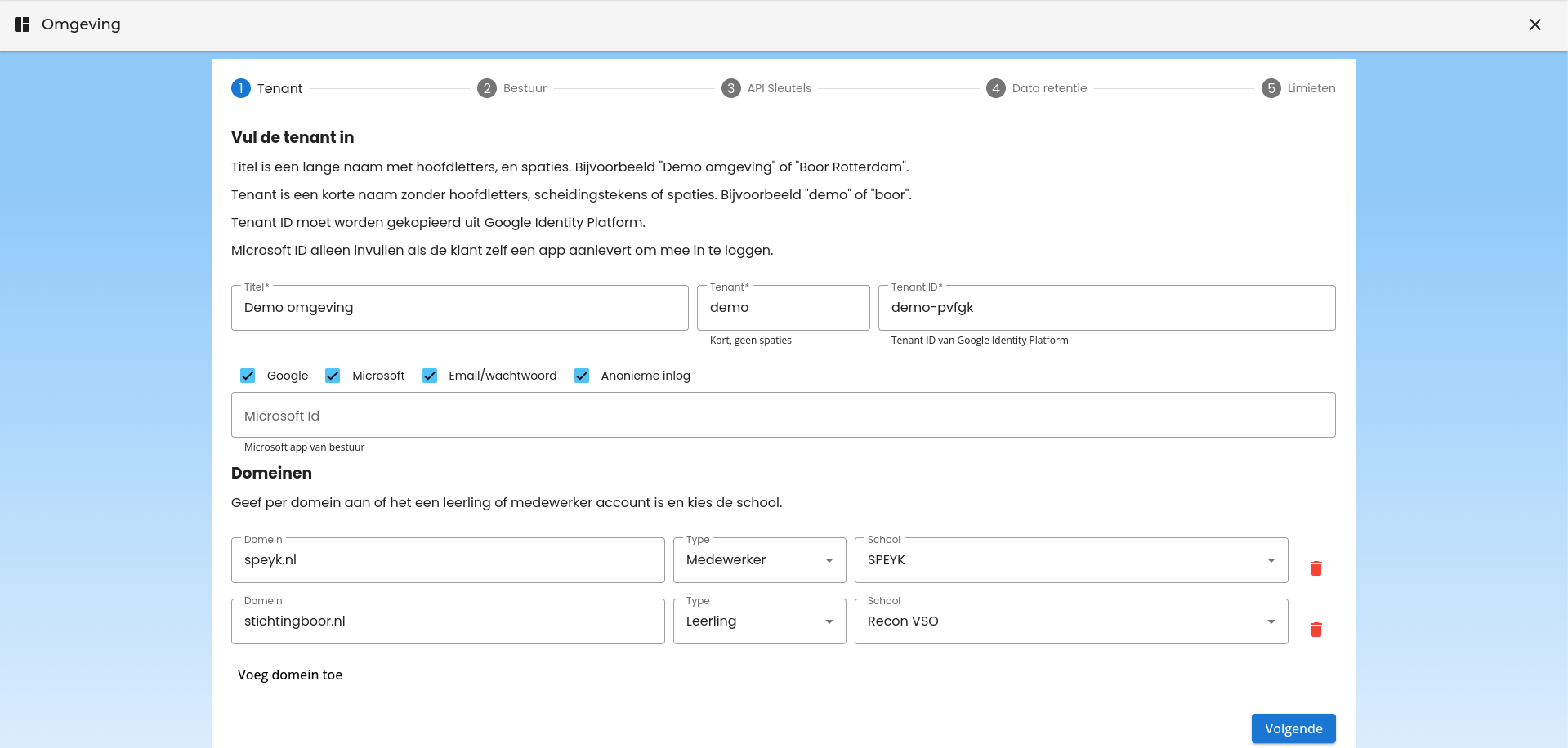
As an administrator, you can whitelist domain names. The domain is linked to a school and to the account type. You have three options for the account type:
- Student: All users with this domain are created as students
- Staff: All users with this domain are created as staff
- Automatic: The system automatically detects whether it is a student or staff account based on the email address format
You can whitelist multiple domains. You can do this via Environment → first step (Tenant).
Automatic detection
With the "Automatic" option, the system detects the account type based on the email address format:
- Staff: Email address contains a dot (.) before the @ symbol
- For example:
first.last@school.nl
- For example:
- Student: Email address does not contain a dot (.) before the @ symbol
- For example:
123456@school.nlorstudentnumber@school.nl
- For example:
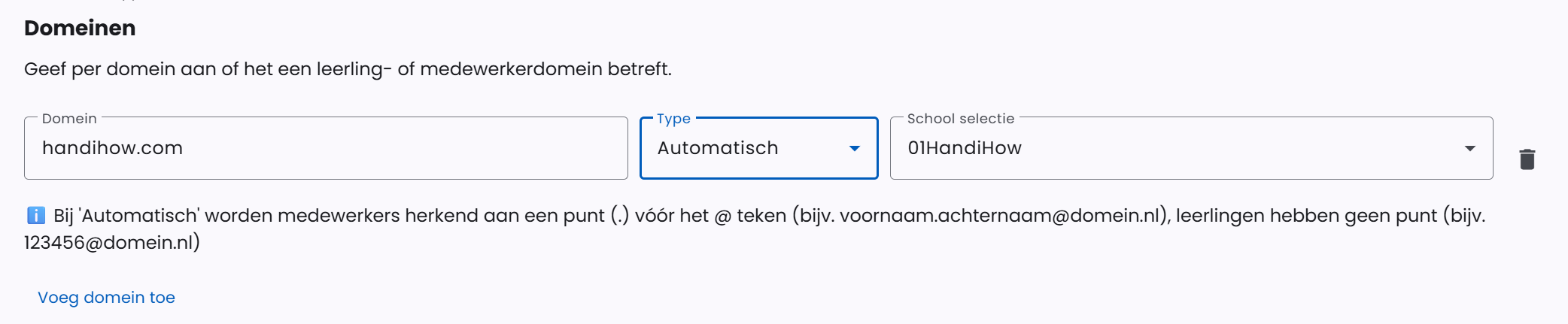
This option is useful when you use one domain for both staff and students, with different email address formats.
Example: Fixed account types
At the fictional school "De Grutto", teachers have email addresses ending in ...@de-grutto.nl and students in ...@leerling-de-grutto.nl. The administrator can whitelist these domains:
- Domain
de-grutto.nl→ Type: Staff - Domain
leerling-de-grutto.nl→ Type: Student
This means the administrator does not have to create an account for every staff member and student. These accounts are automatically created on first sign-in via Microsoft or Google and added to the school based on the domain.
Example: Automatic detection
At another school, both staff and students use the domain school.nl, but with different email address formats:
- Staff:
jan.jansen@school.nl,marie.de.vries@school.nl - Students:
123456@school.nl,987654@school.nl
The administrator can whitelist the domain school.nl with Type: Automatic. The system then automatically recognizes:
- Email addresses with a dot are staff
- Email addresses without a dot are students
Note: order of account verification
If an account already exists, for example created manually or via CSV lists, the system will look for that account first. If the account is found, it is linked to the school associated with the manual account. Domain checking and automatic detection only take place if no existing account is found.
After signing in with Microsoft or Google, account verification starts automatically if the first and last name are known to Microsoft or Google. Otherwise, the user first fills these in and chooses Start verification. Anyone who does not complete the registration or is rejected keeps a login account without a role. AI-School automatically cleans up such accounts every night; after that, the user can simply register again.