Managing Class Groups
A class group is a group for a subject or lesson, alongside the home group. A teacher builds a class group from students of different home groups and can add colleagues as teachers. Students see the lessons and assistants shared with their class group and can take part in the class group's group chats. In those lessons, the class group's AI settings apply in addition to those of the home group.
A class group can also have a login code. Students without their own account can then log in anonymously with a temporary code linked to the class group.
Creating a Class Group
Teachers create a class group in the Groups overview with the plus button in the top right.
First choose what the class group is for:
- A group of students: you choose students from home groups. They see the lessons and assistants you share with the group.
- Anonymous login with a login code: students without an account log in with a code that changes every hour. You do not add students yourself.
Then complete the class group:
- Give the class group a name, for example 3H biology.
- Under Teachers, choose the teachers of the class group. Every chosen teacher sees the class group in their own overview.
- Under Add students from home group, choose a home group and tick the students, or select the entire home group. Repeat this for other home groups.
- If you chose a group of students, you can also turn on Students can also log in anonymously with a login code.
The class group's page lists its students, and Edit class group lets you change it later.
Under AI access and AI policy you set temporary or planned AI access and the AI policy of the class group, just as for a home group. That policy applies to students in the lessons and assistants shared with the class group, on top of the policy of their home group. A policy for a single student is set on the home group's page.
Management Environment Settings
The following rights must be assigned in the management environment for class groups:
- Reading and writing rights for class groups to the board admin, admin and staff roles
- Reading rights for class groups to the student role, so students who sign in with a login code see their class group
Everyone only sees the class groups they belong to. Students only see the class groups they are a member of, even when the school has many more. In the Groups overview and when sharing a lesson or assistant, teachers only see the class groups they teach. Only teachers of a class group and administrators can share something with it.
To enable anonymous login, the following settings must also be changed:
- Anonymous login must be turned on in the environment
- On the Google Identity Platform, the "Anonymous Login" method must be enabled on the tenant
Anonymous Login with a Login Code
AI-School supports anonymous login using a login code. This code is linked to a class group that has its login code turned on. The teacher distributes the code to students who wish to log in anonymously. The code changes every hour on the hour. Class groups created before class groups could contain students keep their login code.
To enable this, the "Anonymous Login" setting must first be activated in the environment. This can be set by the environment administrator.
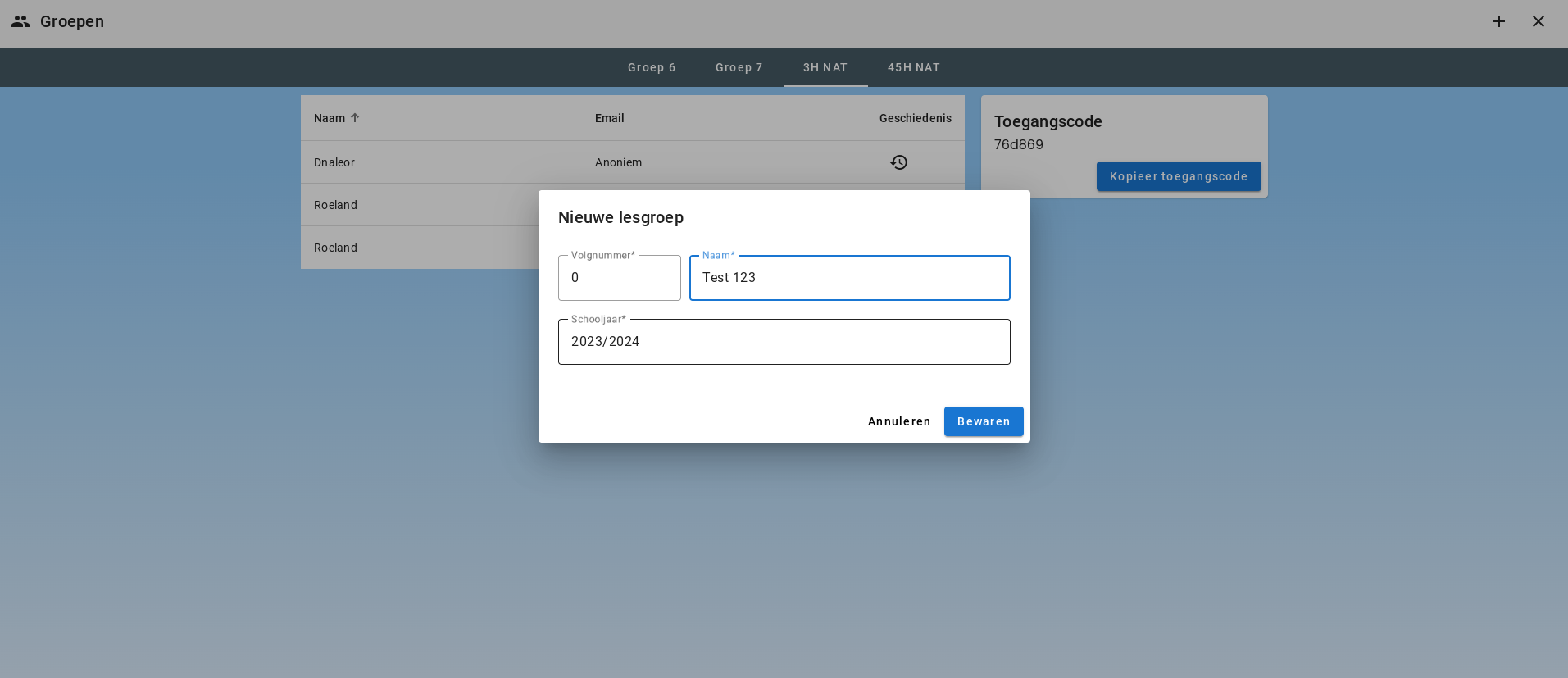
The teacher can then copy the access code for this class group.

This access code changes every hour on the hour. The teacher can send this code via email or Teams to the students. The student can then log in by clicking the "Log in with Access Code" button.
They must then enter a name and the access code.
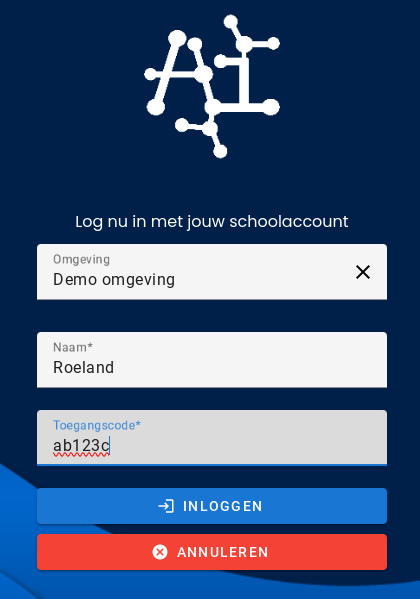
An anonymous account automatically receives student rights and is linked to the class group via the login code. This allows the teacher to view the history of these anonymous accounts.
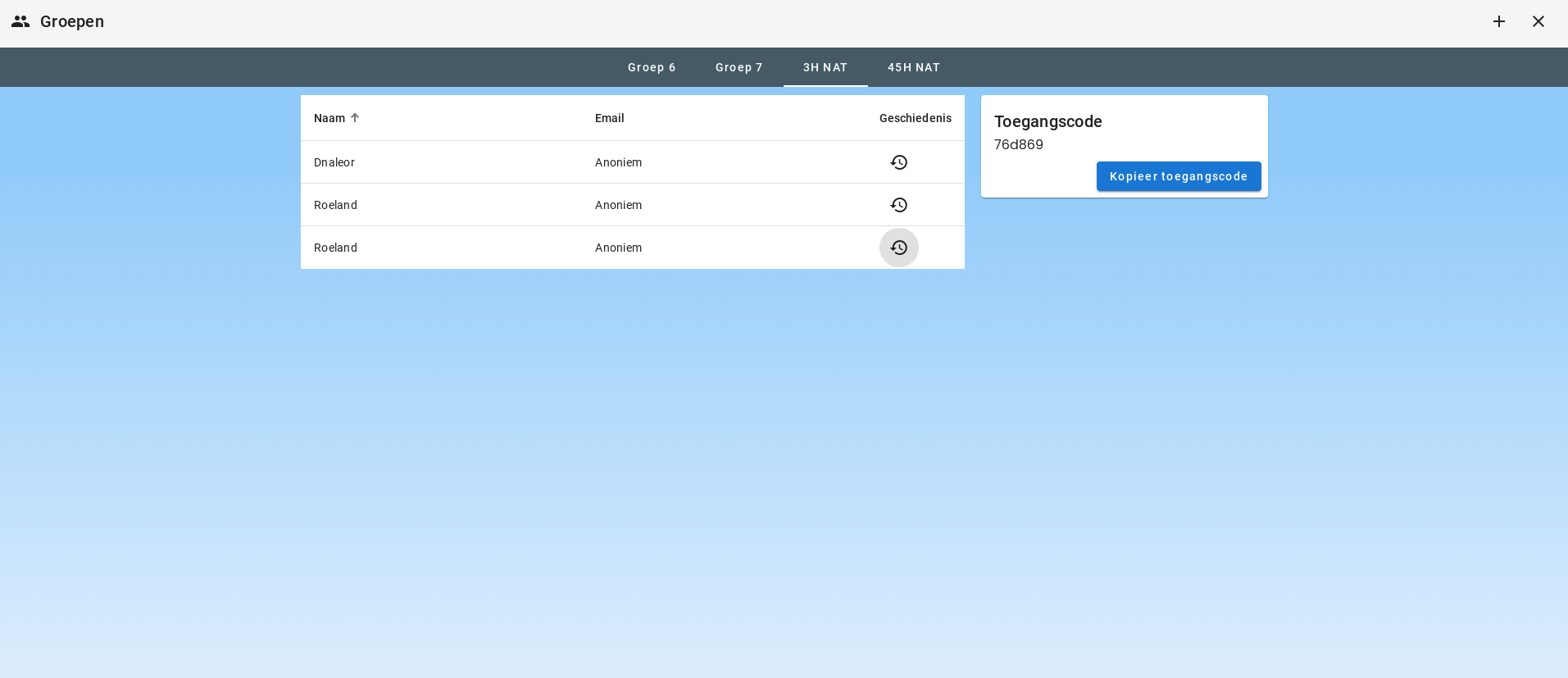
Anonymous accounts cannot log in again with the same account. This means that the chat history is only available during the session.
Class Groups in the Management Environment
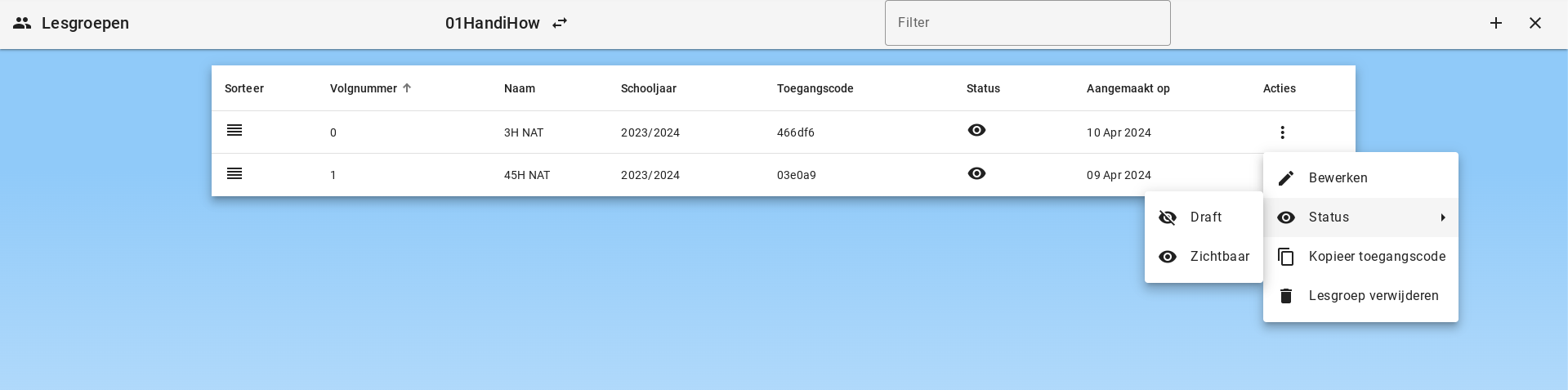
In the management environment, class groups can be edited and deleted. The class groups can be set to invisible. They can also be sorted differently.
Class groups have an automatic expiration date at the beginning of the next school year. This can be set differently in Retention Periods.
Sharing lessons and group chats
Class groups can use shared lessons and group chats, also for pupils who sign in with a login code. Select the class group when sharing a lesson, or create a group chat from its group page. Pupils of the class group, and after signing in with the code also anonymous pupils, see shared lessons in their menu and group chats on their dashboard. Each pupil has a personal conversation within a lesson; group-chat messages are visible to participants. The teacher grants each pupil permission to request AI in the group chat. Existing school and AI settings still apply. Revoking sharing or group membership removes access.
Deleting groups from the Groups overview
In the Groups overview you can tick groups and delete them in one go with the Delete selected button. AI-School always asks for confirmation first.
- Class groups can be deleted by anyone whose role has delete rights for class groups. Pupils can then no longer sign in with that group's login code. The pupils themselves are not deleted.
- Home groups can only be deleted by an administrator (admin, board admin or super admin). Teachers do not see a checkbox next to home groups.
- If a selected home group still contains pupils, the confirmation shows how many. These pupils are not deleted, but they no longer have a home group until an administrator assigns them again.